
Hello all,
Today we are going to look at how simple it is to submit a new application to WinGet with a couple of tips and tricks along the way. For this example, we are going to be submitting an application called Azeus Convene using the Komac WinGet tool. Komac is an advanced CLI tool for managing WinGet packages, using Komac you can submit new applications, update existing manifests and remove old versions.
Installing Komac
You can simply install Komac on Windows with…you guessed it, WinGet! We used the command “winget install komac”.
Once installed type komac to view all the available commands:
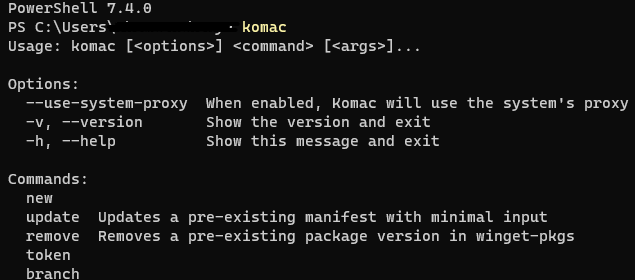
Submitting a New Package
For adding a new application, we are going to use the “new” command.
The first step is to provide a package identifier, for this we are going to use “Azeus.Coneve”.

Next we provide the version, this was pulled directly from the official website.

Then we provide the download URL, we get this by downloading the file using Edge browser and copying the download link.

Komac continues to request different information about the package (Machine or user install, silent install commands etc.). Many of these are optional but the general rule of thumb is the more information you can provide, the better the manifest quality will be.
After you provide the necessary information, Komac will offer you the chance to submit a pull request. This is the ideal choice if no additional modifications are needed. However, if you wish to further refine the manifest, you have the option to edit the files directly by selecting “Write to files”.

Once the pull request has been completed, you can view the validation progress directly from the GitHub portal. The validation process tests installing the package in a sandbox environment to confirm the installers work. It also conducts rigorous malware testing to confirm the application is safe.
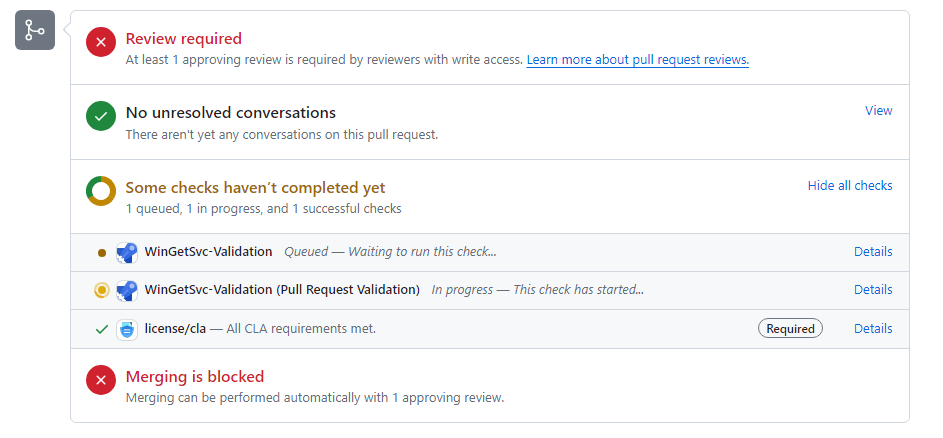
And now we wait…
After the package successfully cleared the validation tests, the next step was to wait for a Winget moderator’s manual approval. Since we submitted it over the weekend, approval came through on Monday. By monitoring the package on GitHub, we observed that the manifest had been merged, signifying its availability in WinGet!

Confirming the WinGet Package
To confirm the package was now available, we opened up PowerShell and entered the following “winget install –id Azeus.Convene”. And it works!

Adding the Application into Pckgr
Now that Convene is available in WinGet, we can go ahead and submit the package to Pckgr from the dashboard:
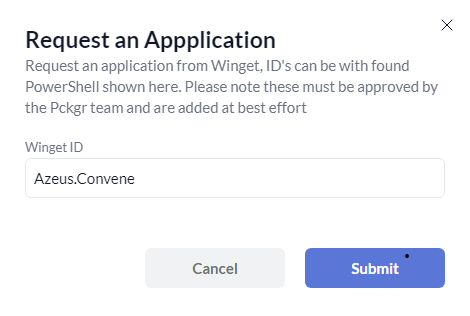
The package is then run through our automation which converts it into a Win32 Intune package and uploads it to the Pckgr database. This allows us to begin testing the deployment.
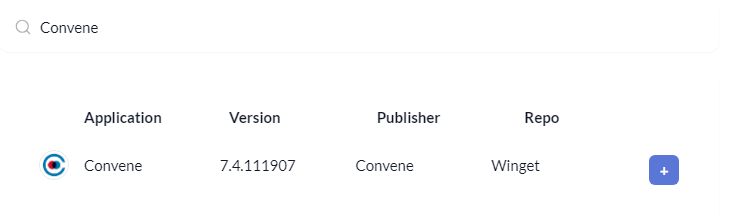
We deployed the application into our test Intune Tenant and confirmed the package installed successfully.
Automating the Updates
Finally, we add the WinGet application into our Pckgr Bot’s knowledge so it can automate future submissions when a new version is detected. Our bot will now scan for new package updates periodically, if a new update is found it will submit the new package to WinGet.
Summing Up
As you can see, modern packaging tools like Komac make it extremely easy to add packages into WinGet. Komac not only simplifies the submission process but also ensures that applications like Convene are easily accessible for the community via WinGet.

 Pckgr Blog
Leave a comment