
Today, we’re diving into an exciting feature from Pckgr that’s going to make your application deployment smoother than ever. Specifically, we’re focusing on deploying updates for Visual Studio Code. We’ll ensure that the update process is as non-intrusive as possible for the end user. You can follow along with our step-by-step deployment to show you how it is done.
Step into the Future with Advanced App Deployment
A common scenario IT Admins see from end users is their frustration around out of the blue updates that interrupt their work. More than just an annoyance, updating an application while it’s open can sometimes cause operational issues, affecting both the software’s functionality and productivity. This is precisely the challenge that Pckgr’s advanced deployment strategy seeks to address.
Our method prioritizes the end-user experience by ensuring updates are seamlessly integrated into your workflow, minimizing interruptions. By prompting for updates only when the application is not in use, we avoid potential complications arising from in-use updates. This approach not only enhances the convenience for the user but also preserves the application’s integrity, ensuring a smooth and efficient update process.
Setting Up the Advanced Deployment
The first step is to enable the Advanced App Deployment feature. This provides you with a handful of new settings to help customize the application deployment. We are going to be focusing on prompting the user to close Visual Studio Code when a new update is available, but if Visual Studio Code is already closed it will proceed silently without notifying the user.
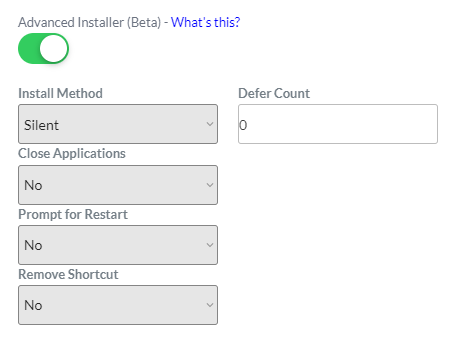

Switch the Install Method: Select “Allow Defer Close Apps”. This setting prompts the user to close specific applications only if they’re open. If the app is closed, the update proceeds without any interruption. Plus, you can leave the Defer Count at its default of 3.

Specify Applications to Close: Change the Close Applications option to Yes. This reveals the “Apps to Close” field, where you’ll enter the process name of the application you’re updating—in our case, Visual Studio Code. A quick look at the Task Manager confirms that the process name we need is “code” (leave out the .exe).

With these settings, you’re ensuring a user-friendly update process that respects the user’s current activity and time.
Deploying with Precision
Now that our settings are fine-tuned, it’s time to deploy Visual Studio Code to Intune.
The Update Experience
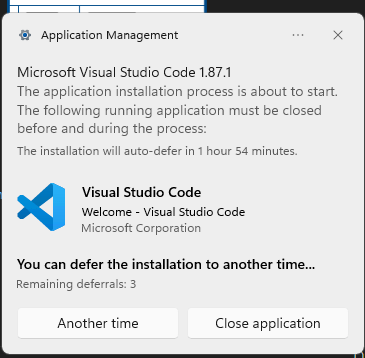
To demonstrate advanced deployment in action, we simulated an update from Visual Studio Code version 1.87.0. With the application open, the Intune deployment kicked in and a Toast Notification appeared, asking the us to close Visual Studio Code to begin the installation. Opting to close the application triggered the update process seamlessly.
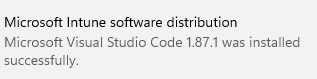
Following the update, Intune confirmed the successful installation of Visual Studio Code.
Wrapping Up
This blog offers a sneak peek into the world of Pckgr’s Advanced Application Deployment, especially when it comes to updating popular applications like Visual Studio Code. It’s all about making updates smooth and user-friendly.
As we discuss the world of Advanced Application Deployment in future blogs, we’ll share even more about how this feature can be a helpful tool for managing software. The approach we’ve discussed today – keeping updates from interrupting open apps and giving users a heads up to close or defer – is just the start. It’s all about avoiding those update headaches while giving users more control.
 Pckgr Blog
Leave a comment