
Hi all,
You might have noticed in the past few months we added in a separate package for Google Chrome (Google Chrome EXE) alongside the standard MSI package. The reason for this is the Google Chrome EXE deployment offers some advantages over the MSI when it comes to using Pckgr or Winget itself.
Why Switch to the Google Chrome EXE Deployment?
The main issue with the Google Chrome MSI installer is its use of a static URL. This means the Winget repository can’t store previous versions of the Chrome MSI. Each time a new version is released, the Winget package is broken until the manifest is updated with the new hash. This can cause delays and interruptions in your deployment process. While it is usually updated very quickly, any delays to the package being modified can impact users of Pckgr and Winget.
On the other hand, the Google Chrome EXE installer from Winget does not face this issue as it uses a dynamic link. The EXE installer can handle updates smoothly, ensuring that your deployments are always up to date without waiting for manifest updates.
Static Link (Also known as Vanity URL)
https://dl.google.com/dl/chrome/install/googlechromestandaloneenterprise64.msi
Is there a difference between the MSI and the EXE?
There is often confusion regarding the MSI version of Chrome being intended for enterprises and the EXE version exclusively for consumers. However, official documentation from Google confirms that they are identical. See the below screenshot.
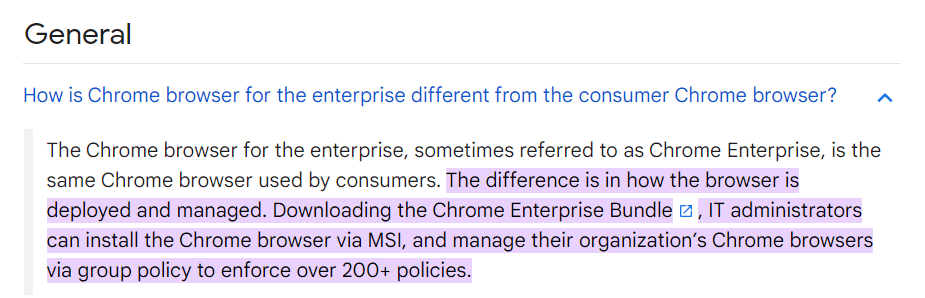
This assures the businesses that they can safely deploy the EXE version without missing any Enterprise features.
Demo: Google Chrome EXE Deployment with a previous MSI Installation
We’ve put together a quick demo showing how the EXE installer handles updates when the MSI has been deployed previously and that the managed settings will still apply. First we deployed installed an old version of Google Chrome using the MSI file.

We then deployed the Google Chrome (EXE) package from Pckgr to Intune and assigned the deployment.

The update for Google Chrome installed successfully, we also checked the version to confirm the updated package version number was showing.
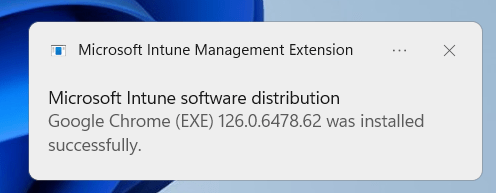

Finally, we checked the settings to confirm the browser was still managed by our organization and had the policies deployed from Intune.

Deploying the Google Chrome Updater Component
For any Winget users, it’s essential to note that when deploying the Google Chrome EXE package, you must also utilize Winget to install the Google Updater (post install). This is necessary as the standalone exe does not automatically install the updater and needs to be included when deploying via Winget.
Conclusion
Switching to the Google Chrome EXE deployment from Winget offers a more reliable and efficient way to manage your Chrome installations. By avoiding the annoyance of the MSI installer’s static URL, you can ensure smoother updates and maintain compliance with Intune policies.
 Pckgr Blog
Leave a comment