
Have you ever wanted for a safer, more controlled way to roll out application updates across your organization? With Pckgr’s Pilot Group feature, you can now stage deployments in a way that lets you test new releases on a select group of devices (or users) before expanding to everyone. In this post, we’ll walk you through how to leverage this feature to manage staged rollouts for private repository applications via Intune.
What Is the Pilot Group Feature?
The Pilot Group feature in Pckgr is designed for private repository apps. It allows administrators to:
- Test deployments: Push updates first to a designated Pilot group, ensuring everything runs smoothly before a full-scale rollout.
- Control timing: Use custom delays between the Pilot and Production groups so you have time to catch and resolve any potential issues.
- Increase deployment confidence: Confirm that the update behaves as expected in a controlled environment.
Learn more about the basics of Pilot Group deployment in our documentation .
Step-by-Step: Setting Up Your Pilot Group Deployment
Follow these detailed steps to get your staged rollout up and running:
Step 1: Add a Private Repository Application
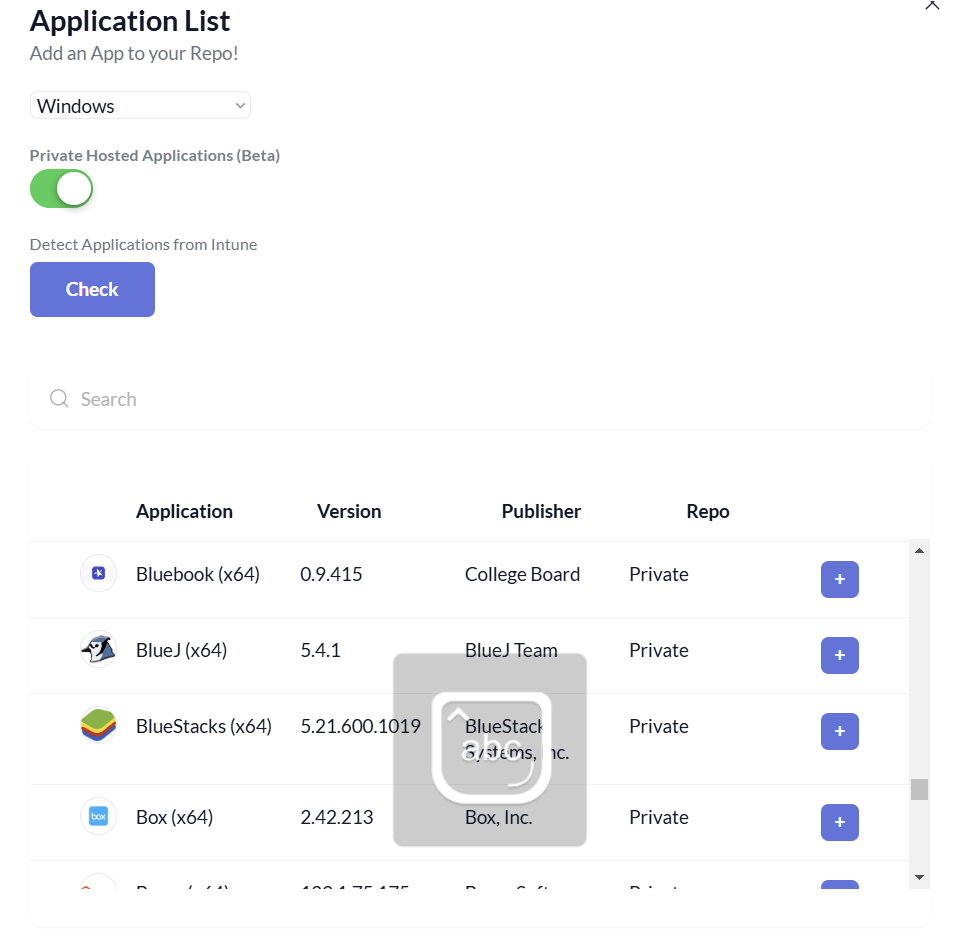
Since the Pilot Group feature is exclusive to private repository apps, start by selecting an application from the Pckgr Application Library.
Step 2: Assign Your Pilot Group ID
The Pilot Group is defined by a group ID from Intune. This group will be the first to receive updates.
- Locate the Group: In your Intune portal, navigate to Intune > Groups and find the desired pilot group.
- Enter the Group ID: Copy this ID and paste it into the deployment settings within your Pckgr Application Library. Note that the Pilot group is set as Required and will not show in the Microsoft Company Portal.

Step 3: Set the Production Group Delay
Fine-tune the timing between when the Pilot group receives updates and when the Production group does.
- Adjust the Slider: Use the provided slider in the Pckgr deployment settings to set the delay. For example, you might have the Production group receive the update after a few days.
- Test Your Timing: Choose a delay that gives your pilot testers enough time to validate the update.

Step 4: Configure the Global Update Delay
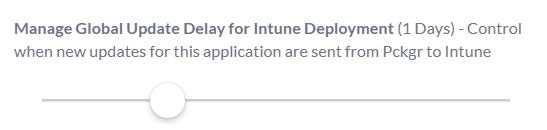
Define a global delay for future updates to Intune. This setting controls the interval between a new version’s release and the start of your staged rollout.
- Immediate vs. Delayed Rollout: Set the delay to zero if you want the Pilot group to receive the update as soon as it’s available, or add extra days if you prefer to account for vendor changes.
- Plan Ahead: A well-planned delay helps balance risk with the need to keep your environment up-to-date.
Step 5: Deploy the Application
With your settings in place, it’s time to deploy the update.
- Deploy to Intune: Click the Deploy to Intune button in Pckgr.
- Pilot Group Activation: The update is pushed immediately to the Pilot group, allowing you to begin testing the new release right away.
Step 6: Expand with the Production Group
Once testing is complete and you’re satisfied with the update’s performance, it’s time to roll out the update more broadly.
- Add Production Group: In the deployment settings, include a Production group to extend the rollout.
- Monitor the Rollout: The availability column in Intune will show the delay schedule, ensuring that the transition from Pilot to Production is smooth.
Example Workflow in Action
Imagine you’ve set your global delay to one day and the Production group delay to three days. Here’s how the update process unfolds:
- Day 0: New update is released. The Global delay begins with a 24 hour expiry.
- Day 1: The global delay expires, and the update is now released to the pilot group.
- Day 3: The Production group receives the update, ensuring a staggered and controlled rollout.
This workflow minimizes risk by giving you ample time to address any issues found by the pilot testers.
Conclusion
The Pilot Group feature in Pckgr empowers IT administrators to deploy application updates with confidence. By allowing staged rollouts and controlled delays, you can ensure that updates are thoroughly tested before reaching your entire user base. This not only reduces the risk of widespread issues but also streamlines the update process in your Intune environment.
Why Choose Pckgr?
- Risk Mitigation: Test updates on a select group before full deployment.
- Streamlined Management: Use a single platform to manage both pilot and production rollouts.
- Flexible Scheduling: Adjust delays to suit your organizational needs without coding.
 Pckgr Blog
Leave a comment