
Deploying Visio Plan 2 or Project via Pckgr’s Custom Application Feature
Microsoft’s Visio and Project are popular tools but deploying them through Microsoft Intune can often be complex and time consuming. That’s why we wanted to show you how simple it is to use Pckgr’s Custom Application feature to deploy these tools using the Office Deployment Tool (ODT) and your own custom configuration.
This method is ideal for admins who want to deploy Microsoft Office add-ons like Visio or Project without bundling the full Office suite.
Why Use Pckgr’s Custom App Feature?
Pckgr’s Custom Application functionality is designed to provide a drag-and-drop solution for deploying any EXE or MSI installer. With automatic validation and detection scripting, it’s ideal for advanced use cases like deploying Visio or Project via XML configuration and the ODT.
Step-by-Step: Deploy Visio Plan 2 (or Project)
1. Go to the Office Configuration Tool
- Navigate to https://config.office.com/officeSettings/configure
- Select Visio Plan 2 (or Project Plan 3/5) from the product list.
- Ensure that no other products are selected.
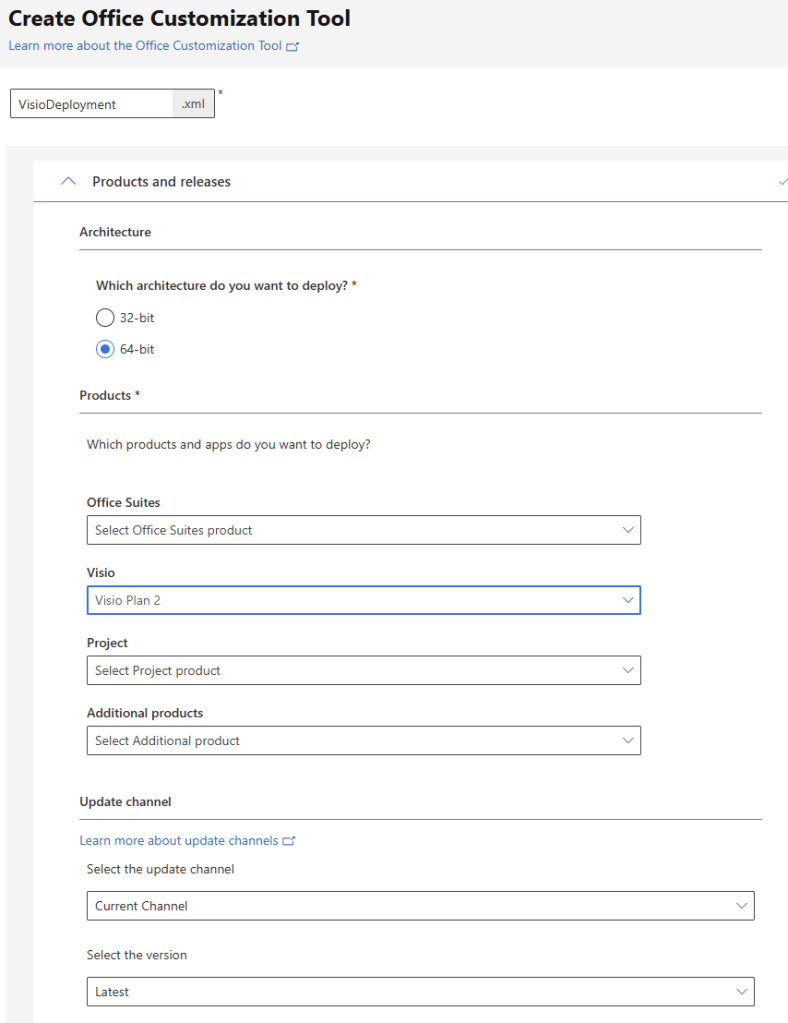
2. Download Your Configuration XML
- Finalize your configuration and click Export to download the
.xmlfile. - This file defines what will be installed.
3. Upload the XML to Azure Blob Storage
- Use your Azure portal to upload the
.xmlfile to a blob container with public access (or a signed URL).
4. Download the Office Deployment Tool
- Get the setup executable from:
https://officecdn.microsoft.com/pr/wsus/setup.exe
5. Create a Custom Application in Pckgr
- Log in to the Pckgr Dashboard.
- Go to the Custom Applications tab and click New Application.
- Upload the
setup.exefile you downloaded. - Set the Custom Install Command as:
/configure https://<yourblob>.blob.core.windows.net/<container>/yourfile.xml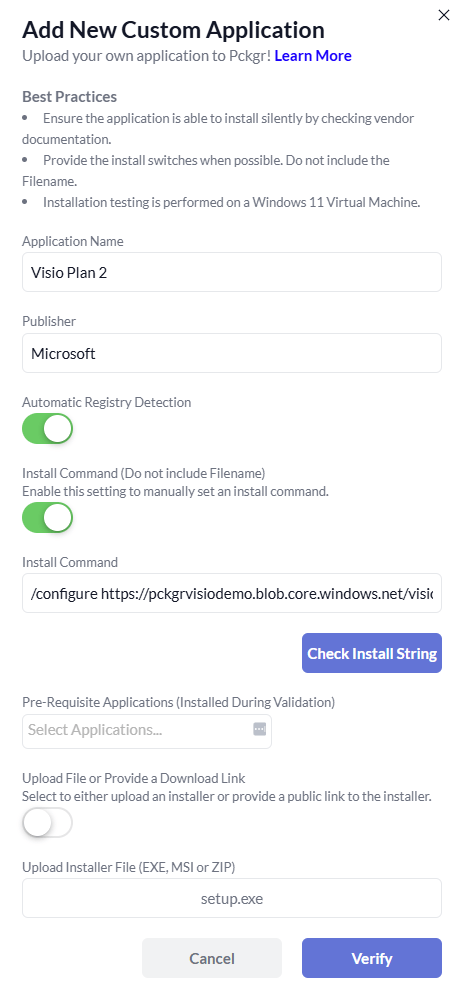
6. Verify and Test
- Click Verify in Pckgr. This triggers automated testing:
- Installs the app
- Creates detection logic
- Once verified, it will be marked as ready.
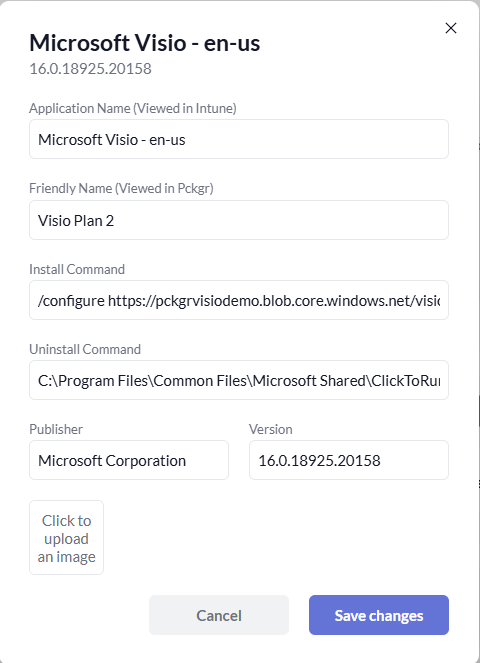
7. Deploy to Intune
- From your tenant’s App Library in Pckgr, find the custom application.
- Click Deploy to Intune.
- Your Visio or Project deployment is now live and ready to assign to user groups.
Final Notes
This approach can be used for any of Microsoft’s tools available via the Config Center:
- You can apply the exact same steps for Microsoft Project.
- Maintain precise control over your deployments using Pckgr’s dashboard.
- This method is especially useful in environments where only specific Office components are needed.
Need help setting this up? Chat with us at support@intunepckgr.com.
 Pckgr Blog
Leave a comment