
We’re excited to announce support for PSADT v4 inside Pckgr! This update introduces a modern pop-up design, Intune-first architecture, and code-signed security. End-users see clearer, branded prompts, while admins get smoother and more secure deployments.
Why PSADT v4 Matters
With version 4, the toolkit has been re-designed to meet the demands of modern deployment environments. Here are some upgrades that we think are really important:
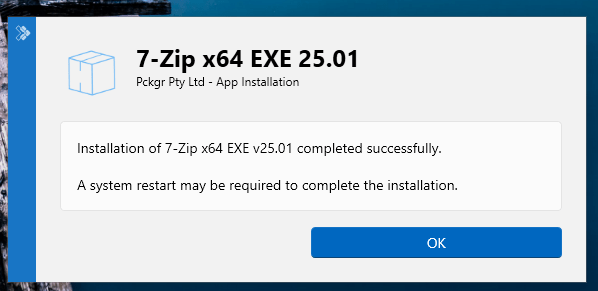
Clean, Modern Pop-Up UI & Design
- v4 introduces a Fluent-style user interface, with minimalist design, better readability, and support for Light/Dark mode. This means we no longer need to use the Toast Extension previously used in V3
- Pop-ups now behave more like native Windows toast notifications, giving a cleaner, integrated user experience.
Built with Intune in Mind
- PSADT v4 eliminates the need for ServiceUI.exe for interactive dialogs when deployed via Intune or other endpoint management. UI now runs securely in the user session without privilege juggling.
- The “Auto” deployment mode can intelligently decide whether to show notifications or just install silently, depending on user state, system conditions, or Intune context.
- All files have been code signed which is perfect for environments where Windows Defender Application Control is activated.


Enabling PSADT v4 in Pckgr
Switching to v4 is straightforward:
- Go to Application Library
- Open the three-dot menu next to your app
- Choose Deployment
- Toggle “Switch to PSADT v4” on
- Save your changes
From then on, subsequent deployments of that app will use v4. You can revert if needed. Please note that currently you will only be able to set this for new application deployments however we do plan to enable this switch for previously deployed applications.
If you are planning on using the notifications, we recommend disabling the Intune notifications to provide a cleaner experience.
Brand the Pop-Up Notification
To make your update prompts feel less generic and more trusted:
- Convert your company logo to base64 (using any free converter).
- Head over to our documentation to find the related instructions and downloads.
- Download our Branding script template and insert your base64 logo.
- In Intune, under Windows → Scripts, upload the branding script and target your device group.
- Import our PSADT ADMX template via Devices → Windows → Configurations → Import ADMX.
- Create a configuration profile under Templates → Imported Administrative Templates, and enable/enter:
CompanyName→ your company nameLogo→ path to your logo (or base64 reference)
Once enabled (and with PSADT v4 toggled on), your pop-ups during updates and deferrals will carry your brand identity.
Note: The branding UI feature only works if PSADT v4 is enabled on that application.
We are looking forward to feedback on the new enhancement, please feel free to reach out to us at support@intunepckgr.com for ideas. Don’t forget, you can always sign up to intunepckgr.com for a free 30 day trial.
 Pckgr Blog
Leave a comment