
In today’s post, we’re taking a closer look at how you can use Pckgr and Intune together, not just to install and patch apps but also to automate application removal across your fleet.
While Pckgr is primarily known for deploying and maintaining software, it’s uninstall capability is an underrated but feature, especially when it comes to targeted cleanup of software that may have been installed manually by users.
For the example today, we will do a cleanup of Zoom from a test device.
Installing Zoom on the Test Device
To begin, we replicate what a typical end user might do which is to manually download Zoom from the official website and install it on their device.

With Zoom now installed, we’re ready to initiate the automated cleanup process using Pckgr.
Creating the Uninstall Package in Pckgr
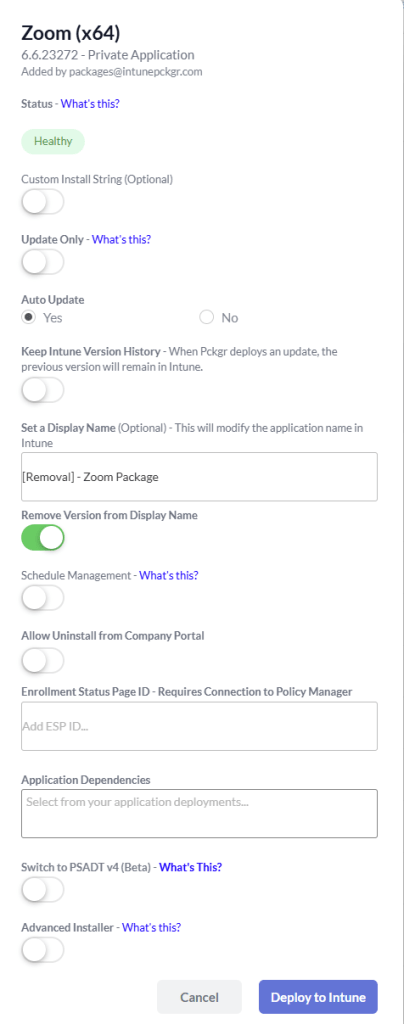
Next, we head over to the Pckgr dashboard and add Zoom (x64) to our library.
To make the intent of this package crystal clear, we set the display name to: [Removal] – Zoom Package
We also remove the version number from the display name, so it doesn’t distract from its purpose. This naming convention helps admins and even end users to clearly understand this is an uninstall-only package.
Deploying the Uninstall via Intune
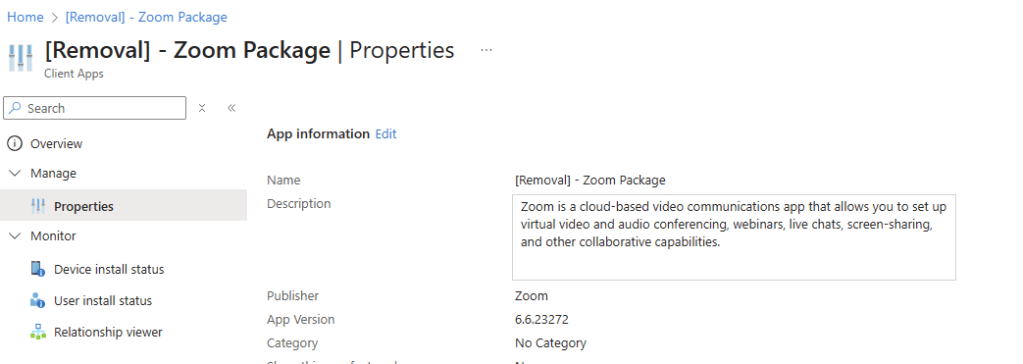
Checking in Intune after the application is deployed, we can see the display name is matching as to not cause any confusion.
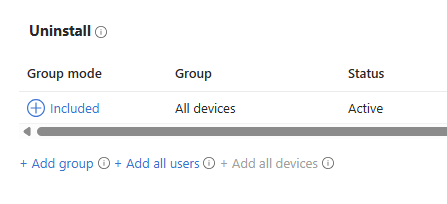
We then go into the Assignments tab and set the app to Uninstall for the All Devices group.
After giving Intune a bit of time to do its thing, we refresh the application install status list.
Zoom is now showing as Not Installed in Intune, looks promising!
But let’s confirm it at the source…

It’s Still There?
Physically checking the device, we notice Zoom is still installed. That’s odd.
So what went wrong?
After digging a little deeper, the answer becomes clear:
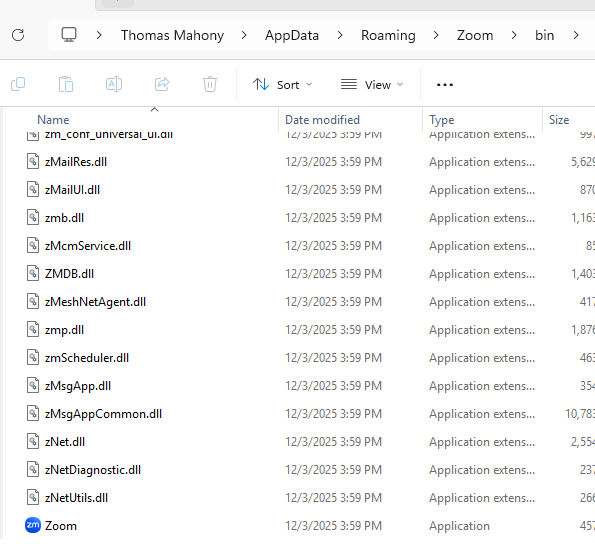
We had installed the user-based version of Zoom but the uninstall package was targeting the system-wide version.
Sure enough, we found Zoom installed in the Local AppData folder and not in Program Files. The uninstall package had no visibility into this.
Targeting the Right Version
We need to go back to Pckgr and deploy the User Package instead.
This time, we add the Zoom (User Install) package to the library and assign it to Uninstall for the same device group.
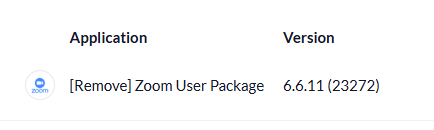
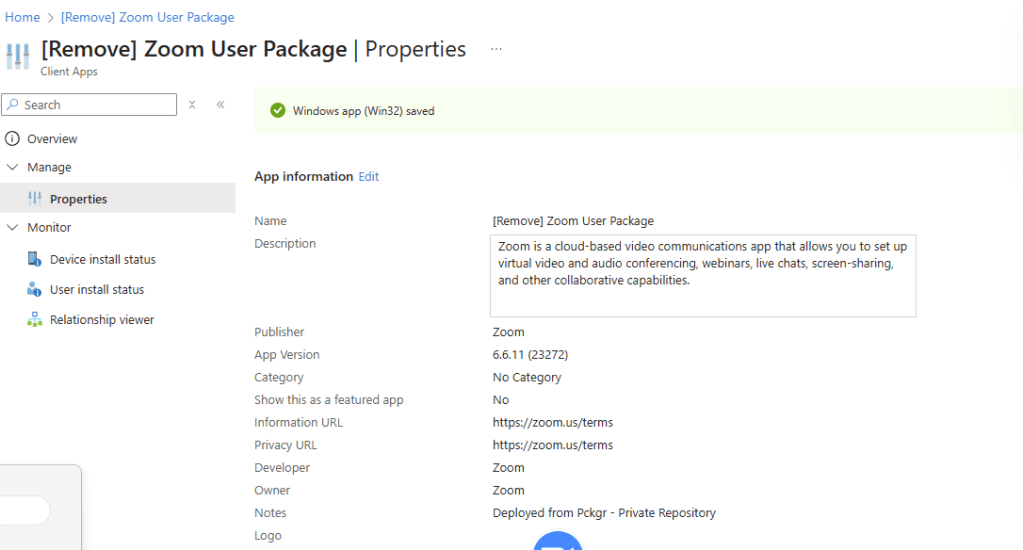
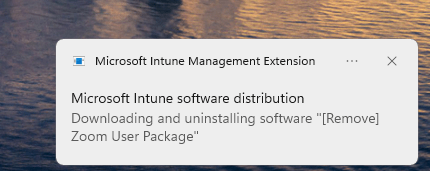
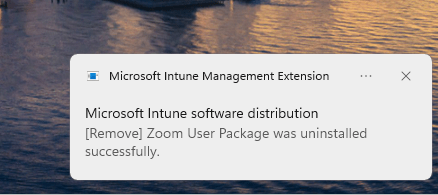
After triggering a reboot, the uninstall kicked off successfully. Zoom was finally removed from the device which we confirmed both via Intune and on the device itself.
Understanding What Happened
So, why did the first uninstall fail?
It all comes down to how Zoom installs itself and understanding the difference between system-wide and user-based installs.
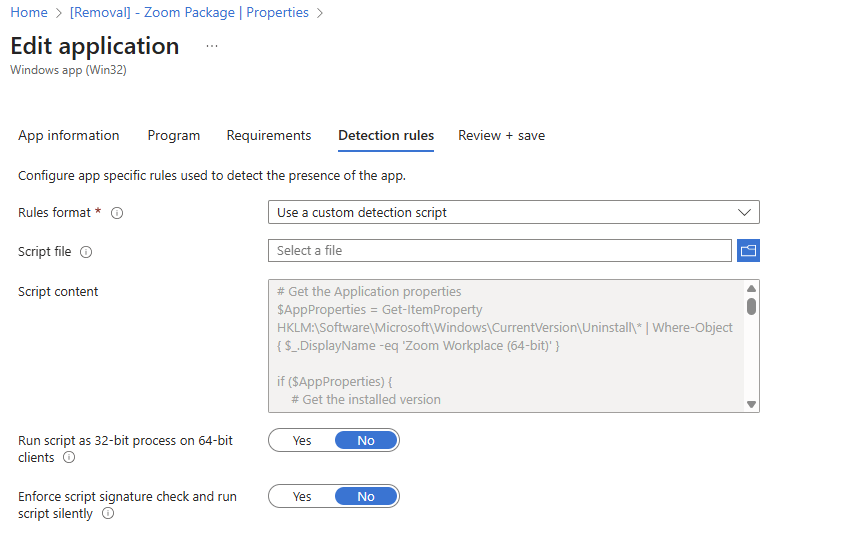
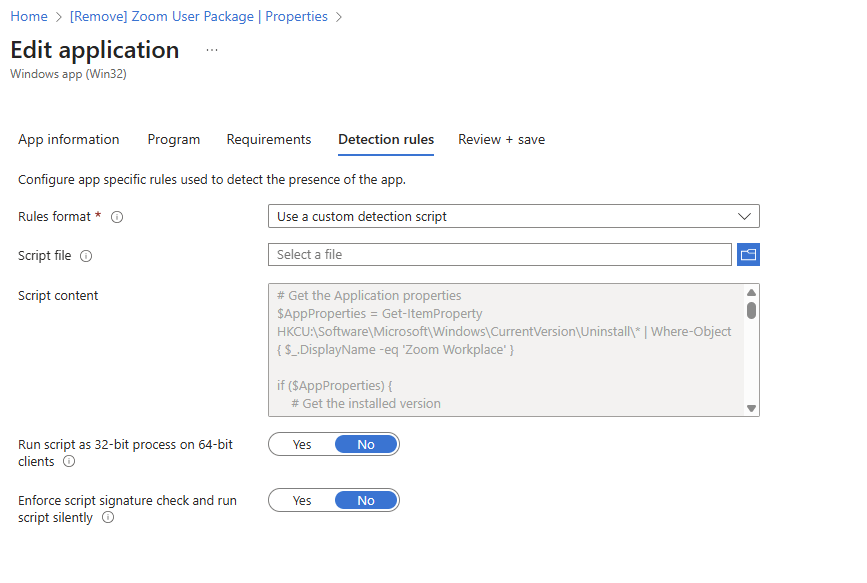
Pckgr uses detection scripts via Intune to determine if an app is present. The system version of Zoom checks the Local Machine registry, while the user version looks in the Current User registry.
Since the original uninstall package ran in system context, it had no visibility into the user-space install. By switching to a user-context package, we were able to detect and remove the app properly.
Final Thoughts
This test run highlights two important takeaways:
- Pckgr isn’t just for installation and patching, it can be a powerful tool for application cleanup as well.
- Understanding the difference between SYSTEM and USER installs and how detection scripts work is crucial when building uninstall policies in a managed environment.
With the right packaging and a bit of planning, you can automate application removals at scale, reclaim control over unmanaged installs, and keep your device fleet clean and compliant. All through Intune and Pckgr.
 Pckgr Blog
Leave a comment