
A couple of weeks ago, I wrote a blog showcasing how to package Autodesk applications using the Custom Application feature in Pckgr. Today, we are going a step further by looking at how to deploy Autodesk updates using the same tool, taking advantage of the built-in dependency feature.
The goal here is to help IT admins simplify what is normally a complex and time-consuming process. By using Pckgr, you can turn Autodesk application maintenance into something repeatable and easy to manage.
Before Getting Started
To follow along with this example, you will need the following:
- A Pckgr Business account, which gives access to the Custom Application feature
- Access to your Autodesk portal to download the update installer
- A base version of an Autodesk application already uploaded to Pckgr using the Custom Application tool
Download the Update
In this example, we are going to update AutoCAD 2025 to version 2025.1.3. The base version has already been packaged and added to our Custom Library.
Start by logging into your Autodesk portal and downloading the relevant update installer.
Adding the Update Package to Pckgr
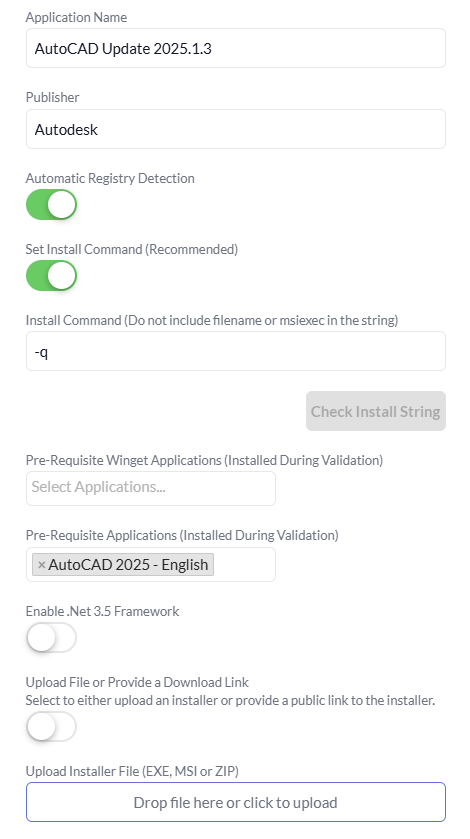
Open the Custom Application tool in Pckgr and begin filling out the details for the update.
Make sure to set the install command to -q so it installs silently during testing and deployment.
The most important step here is setting the base AutoCAD install as a dependency. This ensures that the update is tested in the correct environment, with the required base application already installed.
If you skip this step, the validation will fail because the update cannot install without the original application present.
It is also worth noting that dependencies are only used during the testing phase. They are not included in the final package or deployed again with the update.
Upload and Verify
One benefit of Autodesk updates is that they are much smaller than the base application installers. This means you can upload the update directly using the Pckgr uploader, without needing to use external storage like Azure Blob.
Once uploaded, click “Verify” to begin the test process.
During this stage, the pipeline will install the dependency first to prepare the environment, then install the update. Once complete, it will run detection to confirm that the installation was successful.
Save and deploy to Intune
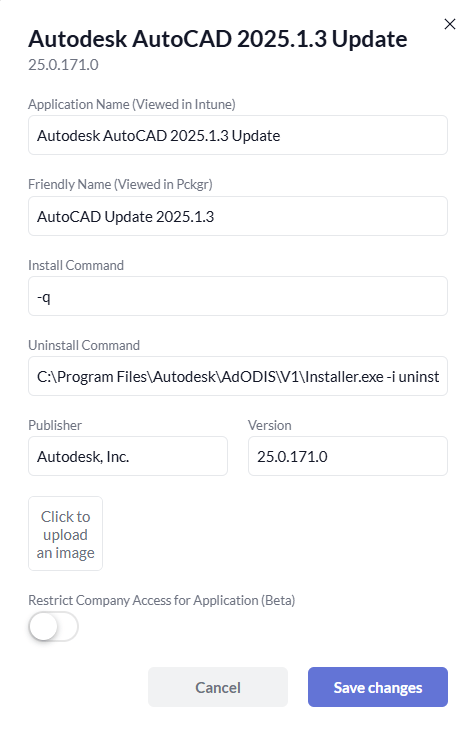
After the application has passed verification, you can save it to your Custom Library.
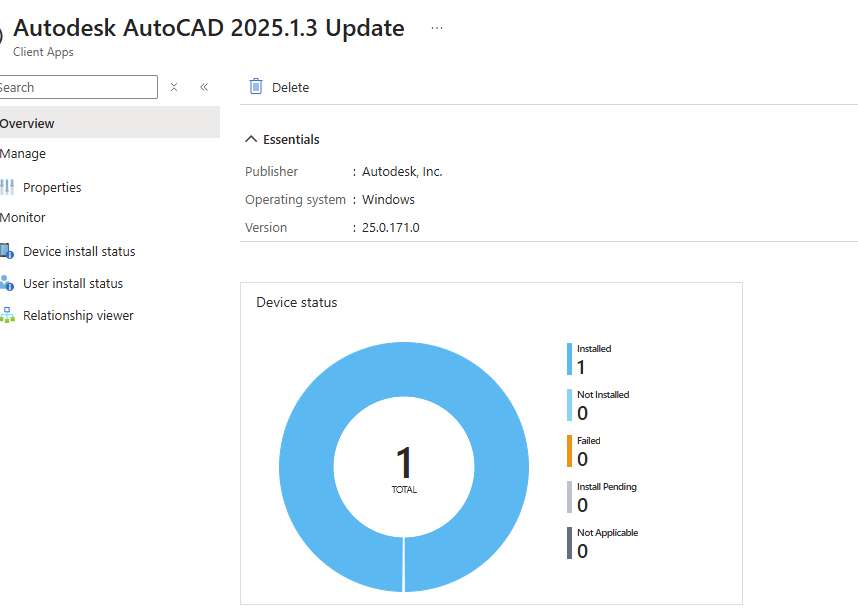
From there, simply deploy it to Intune the same way you would with any other Pckgr-managed application. We can then push the update out to our Intune managed devices.

This approach takes the manual effort out of keeping Autodesk applications up to date. By using dependencies and leveraging Pckgr’s automation, you can make sure updates are applied consistently across your devices with minimal work.
 Pckgr Blog
Leave a comment