
If you’ve tried deploying FortiClient VPN through Intune, you may have noticed that the official Fortinet website only provides an online installer, not a standalone MSI file. This can be a challenge for IT administrators who need to package the app as a Win32 application for Intune.
In this guide, we will walk through how to extract the MSI installer from the FortiClient setup process and prepare it for deployment using Microsoft Intune.
Start by visiting the Fortinet product downloads page: Product Downloads | Fortinet Product Downloads | Support
Be sure to download the free version of FortiClient VPN. You do not need the full client that is behind the support portal login. The free client is suitable for basic VPN deployment and works with the steps we will cover.
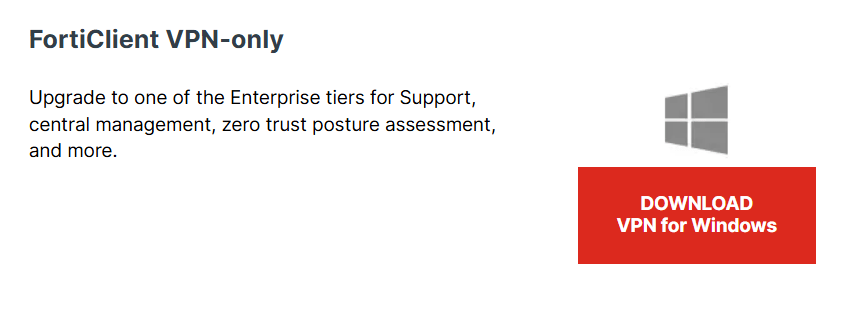
Once downloaded, run the FortiClient online installer.
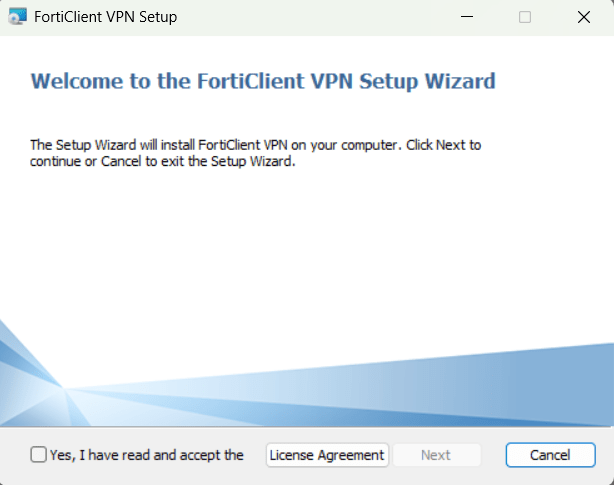
You will see a popup showing that the installer is connecting to Fortinet servers to download the application files. Wait for this to complete. Once it reaches the next screen in the setup process, leave the window open.
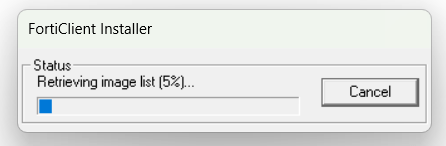
While the installer is still open, open File Explorer and navigate to the following path: C:\ProgramData\Applications\Cache
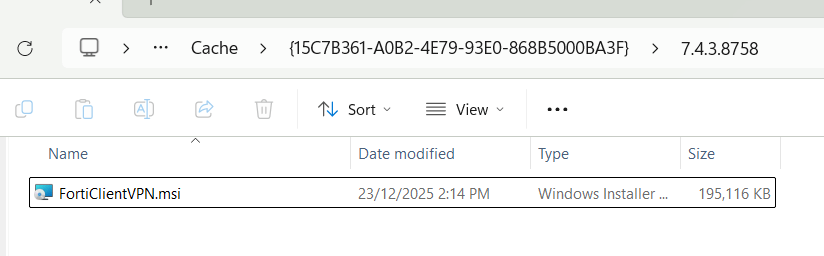
Inside this folder, you will find a subfolder with a long identifier, often in a GUID format.
Open that folder and you should see the MSI installer for FortiClient. This is the actual installer file we want.
Copy the MSI file to a working directory on your system where you will prepare it for packaging.
In here you will have direct access to the MSI, copy it to a folder ready for packaging.
With the MSI file copied to your working directory, use the Microsoft Win32 Content Prep Tool (IntuneWinAppUtil.exe) to package it.
To do this:
- Run the IntuneWinAppUtil tool
- Point it to the directory containing the MSI
- Follow the prompts to create a
.intunewinfile
This file will be used for deployment in Intune.

Go to the Microsoft Intune admin center and create a new Win32 application.
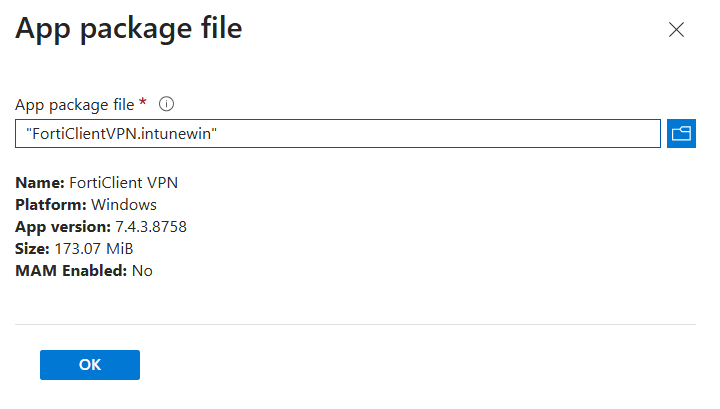
When uploading the .intunewin file, Intune will automatically detect that the installer is an MSI. It will pre-fill the required fields such as:
- Install command
- Uninstall command
- Detection rule
You can then assign the app to users or devices as needed.


And we are done!
With a few simple steps, you can convert the FortiClient VPN online installer into a fully packaged MSI that is ready for deployment through Intune.
If you want to make this process even faster, consider using Pckgr to automate the deployment. Pckgr can handle packaging, uploading, and assignment without requiring manual extraction or prep work.

 Pckgr Blog
Leave a comment