
Keeping applications up to date is one of the most effective ways to reduce vulnerabilities across your device fleet. With Microsoft Defender for Endpoint (MDE), security teams get visibility into outdated or vulnerable software. But visibility alone isn’t enough we need a simple, reliable way to patch those applications.
That’s where Pckgr comes in.
In this post, I’ll show how to take a real-time security recommendation from Microsoft Defender for Endpoint and patch it using Pckgr’s Update Only deployment method. This approach turns vulnerability data into action with just a few clicks.
New: Defender for Endpoint Integration Coming to Pckgr
Before we dive into the demo, here’s some exciting news:
We’re currently working on a direct integration between Microsoft Defender for Endpoint and Pckgr.
This new integration will provide a real-time Security Dashboard inside Pckgr, showing you:
- Apps requiring patching
- Known vulnerabilities
- Public exploit indicators
- Risk scoring
Stay tuned, this feature is coming soon to all Business Plan customers.
Setting Up the Environment
To demonstrate this workflow, I set up a Windows 11 virtual machine and intentionally installed several outdated applications. This allowed Microsoft Defender for Endpoint to scan the system and populate its recommendations dashboard with patch suggestions.
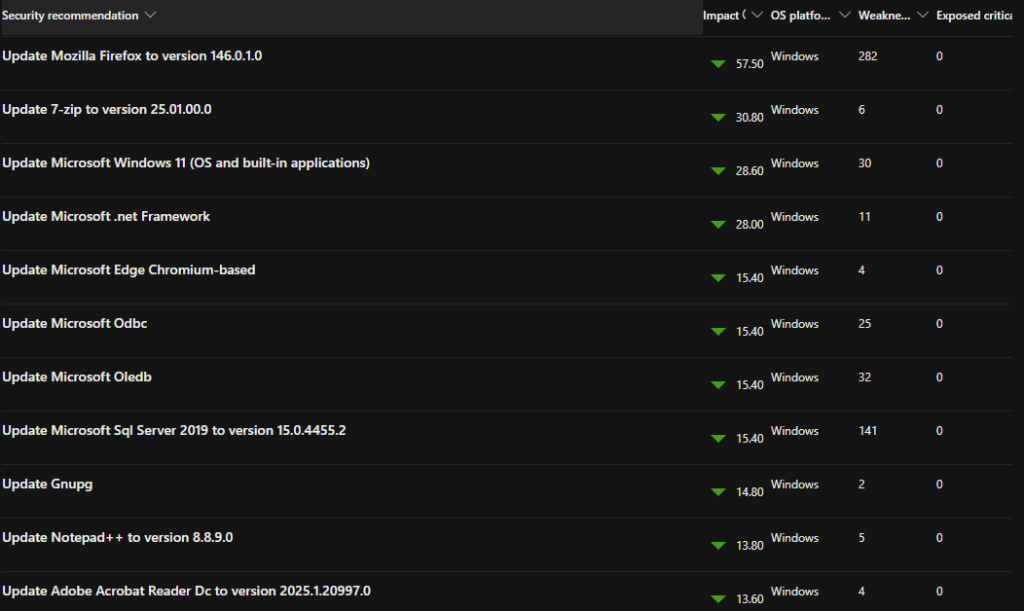
As shown below, MDE has identified a number of applications that require updates, including Mozilla Firefox, 7-Zip, Notepad++, and others.
Step 1: Choosing a Recommendation to Patch
For this walkthrough, I’m going to patch Mozilla Firefox, which is flagged with the highest impact score on the list.
From the Defender for Endpoint dashboard, I can see:
- The current version is outdated
- The recommended version is 146.0.1.0
- The application is adding 282 Weaknesses to my environment (not good!)
Step 2: Finding the App in Pckgr
Next, I head over to Pckgr and search for Mozilla Firefox in the application library.
Once I find it, I open the application details to check the version history. The latest version available matches the version Defender recommended (146.0.1), which confirms that Pckgr is ready to deploy this update.

Step 3: Deploying the Update Only
To patch Firefox without affecting other configurations or reinstalling the base app, I select the “Deploy Update Only” option in Pckgr.
This option is ideal for environments where the app is already installed and configured. It simply updates the software to the latest version using Pckgr’s built-in version detection, without reapplying the entire installer.
After selecting my device group (or test VM in this case), I kick off the deployment.
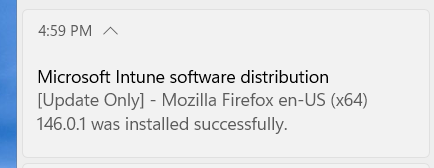
Step 4: Verifying the Update
Once the update has completed, I go back to the Defender for Endpoint dashboard. After the next scan cycle, Firefox is no longer listed as a vulnerability. Pckgr has successfully patched the app, and the exposure score has improved.
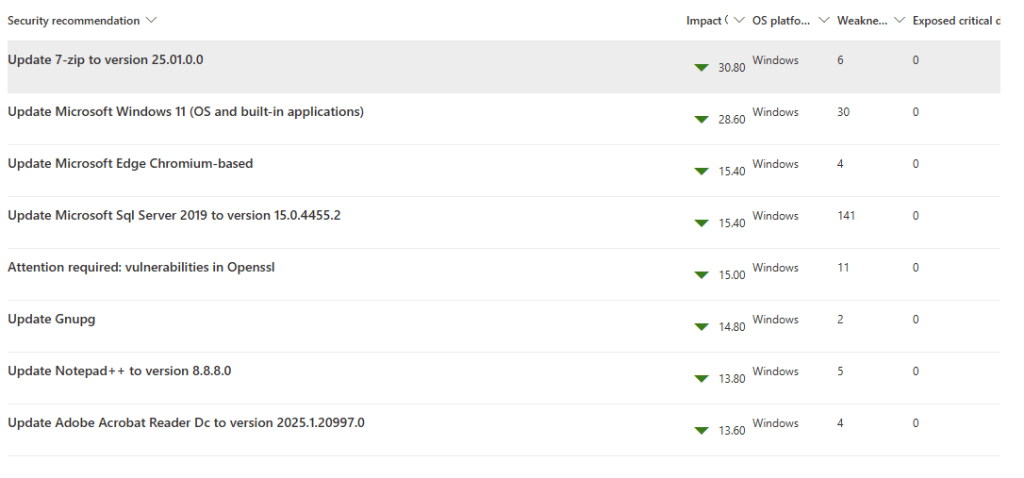
You can also verify the update locally by checking the application version on the device, or reviewing logs from Pckgr and Intune.
Summary
By combining Microsoft Defender for Endpoint’s threat intelligence with Pckgr’s automated app deployment, IT teams can respond to vulnerabilities faster and more reliably.
If you’re already using Defender for Endpoint, you’ll soon be able to manage your patching lifecycle end-to-end all from inside Pckgr.
Want early access to the integration? Reach out to our team, or sign up for a free 30-day trial of Pckgr to start automating your app patching today.
 Pckgr Blog
Leave a comment