
In this blog, we’re going to run through a demo of how to use the Pckgr Microsoft Defender integration to identify vulnerable applications and remediate them automatically using Intune.
The goal of this workflow is to take the recommendations coming from Microsoft Defender for Endpoint, surface them inside Pckgr, and turn them into actionable patch deployments with minimal effort from IT admins.
Demo Environment Setup
For this demo, we’ve enrolled a Windows 11 virtual machine into both Microsoft Intune and Microsoft Defender for Endpoint.
We’ve also connected the Pckgr dashboard directly to our Defender environment using the Defender API. This allows Pckgr to continuously ingest Defender recommendations and vulnerability data.
Once everything is connected, we can move straight to the Pckgr Security Dashboard.
Viewing the Pckgr Security Dashboard
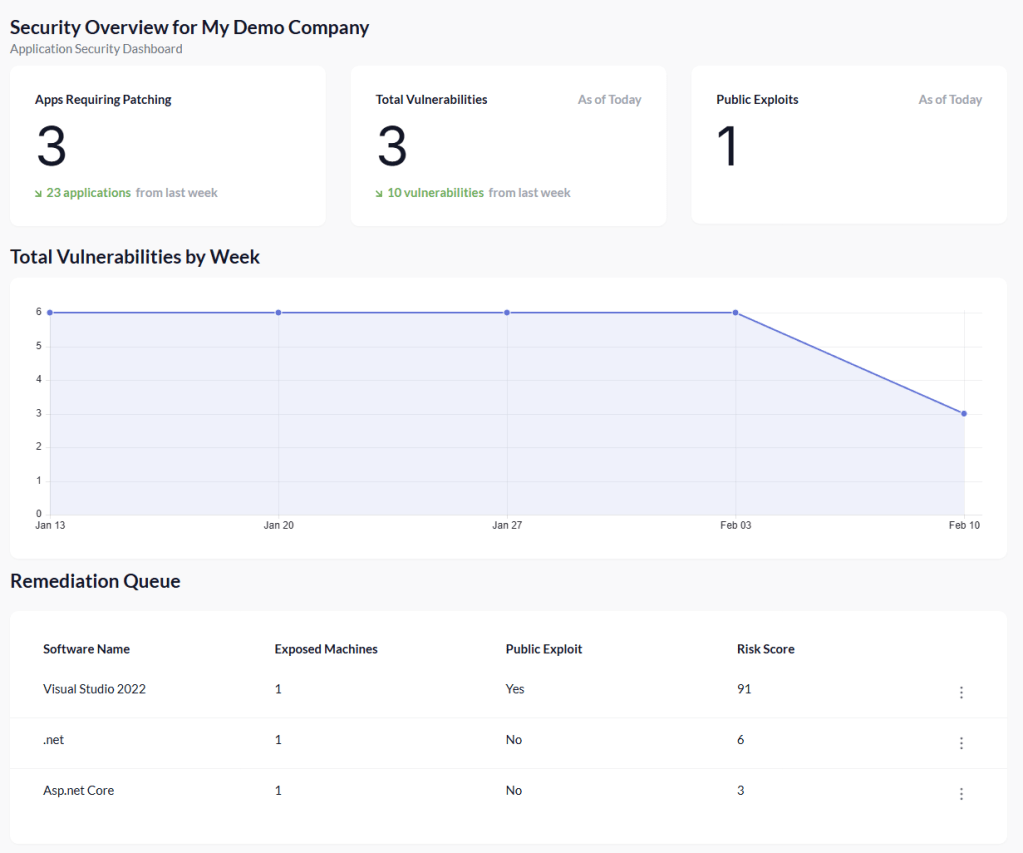
Opening the dashboard, we can immediately see a summary of applications that require patching. In this demo environment, Defender has identified three applications with known vulnerabilities.
One of these applications stands out because it has a public exploit associated with it. That’s the one we want to prioritise.
This is where Pckgr’s remediation logic comes into play.
Prioritising Risk with the Remediation Queue
Pckgr captures several key data points from Defender, including the Defender risk score, exposed weaknesses, and exploit availability.
Using this information, Pckgr automatically builds a Remediation Queue, ordering applications by risk so IT admins know exactly where to focus first.
In our case, Visual Studio 2022 has a significantly higher risk score than the other applications. It clearly becomes the top priority, so we’ll use it as our patching example.
Reviewing Application Exposure Details
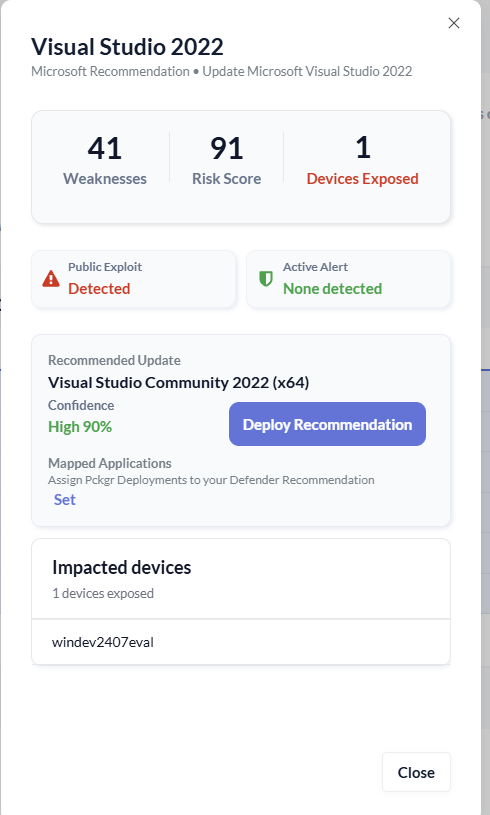
By clicking the three-dot menu next to Visual Studio 2022, we can open a detailed exposure view.
Here we can see:
- The number of weaknesses associated with the application
- Whether public exploits are available
- Any active Defender alerts
In this example, Visual Studio 2022 is flagged with a public exploit, which makes remediation even more urgent.
Matching the Defender Recommendation to Pckgr
Behind the scenes, Pckgr performs backend matching between the Defender recommendation and the Pckgr application catalogue.
Based on this matching, Pckgr recommends:
- Visual Studio Community 2022 (x64)
- With a 90% confidence score
The confidence score helps IT admins understand how certain Pckgr is about the match. Before deploying anything, we want to verify this against what’s actually installed.
Confirming the Application in Intune
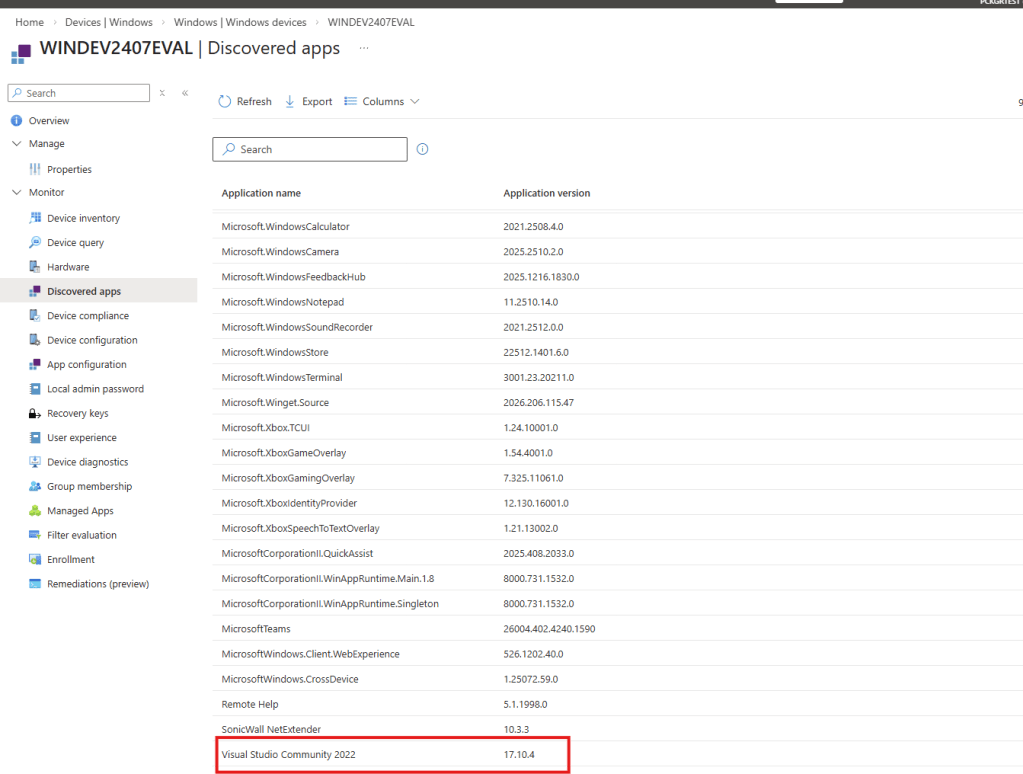
Since Pckgr has access to Intune, we can quickly check the affected device to confirm the installed application.
Looking at the detected applications in Intune, we can see that Visual Studio Community 2022 is indeed installed on the device.
With that confirmation, we’re ready to deploy the patch.
Deploying the Patch from Pckgr
Back in Pckgr, we select the recommended package for deployment.
At this point, we have two options:
- Deploy the recommended package
- Manually select a different package if the recommendation is incorrect
This flexibility is important in real-world environments where naming or editions may differ.
To avoid accidentally installing a brand-new application when the match is wrong, Pckgr always deploys these remediations in Update Only mode.
This mode uses a pre-requisite script that checks the registry to confirm the application already exists before applying the update.
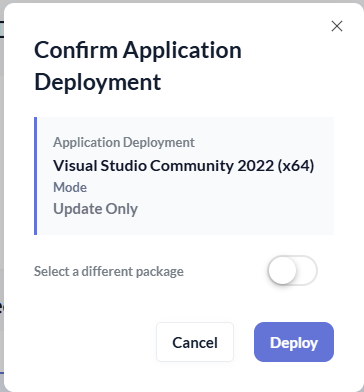
Confirming the application deployment in Pckgr
Sending the Deployment to Intune
Once confirmed, we trigger the deployment and can see the application being pushed into Intune.
After the app appears in Intune, we assign it to:
- All Devices, or
- A specific group containing only vulnerable devices
Since this is a demo tenant with only a few devices, we assign it to All Devices.


Watching the Update on the Endpoint
On the endpoint itself, we can see the update kick off automatically.
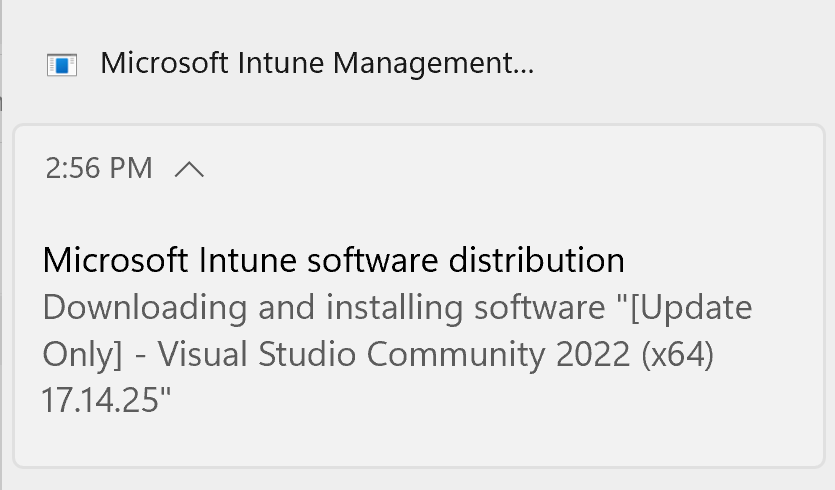
A few moments later, the update completes successfully.
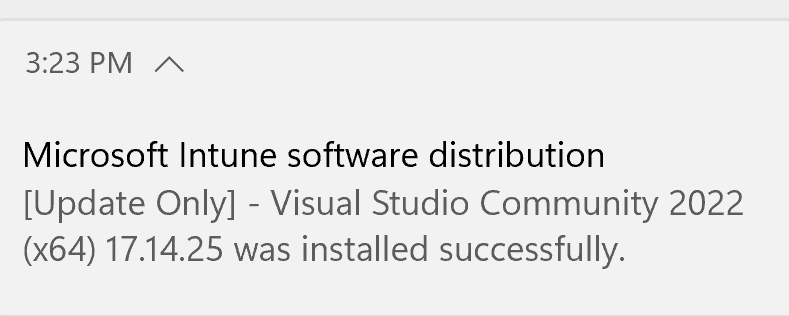
We then confirm on the device that Visual Studio Community 2022 has been updated to the patched version.
Confirming Remediation in Defender
Next, we wait for the Defender portal to sync again.
Once the new scan results come through, the recommendation for Visual Studio 2022 disappears. The vulnerability has been successfully remediated.
Returning to the Pckgr Security Dashboard, we can see the overall risk score has dropped, reflecting the completed patch.
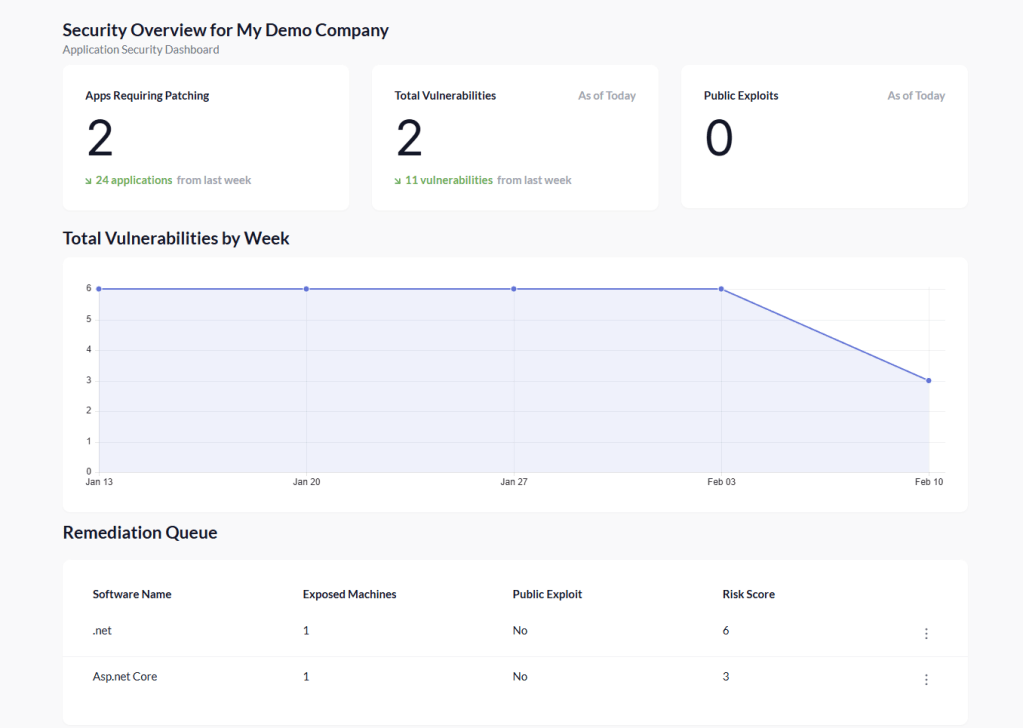
We built the Portal to help bridge the gap between Intune management and the Defender Portal. This gives our customers a single space to review vulnerabilities and deploy patches. Head over to Pckgr today for a trial.
 Pckgr Blog
Leave a comment