
Hello all,
In a previous blog, we explored how to submit a new package to the Winget repository. This time, we’re shifting our focus to updating an existing package – specifically one that’s been requested by our community. Our goal is to not only address these requests but also to demonstrate how straightforward and user-friendly the process of updating a package in Winget can be.
We’re here to guide you step by step, showing that with a little bit of know-how, anyone can contribute to keeping the repository current and responsive to user needs.
Selecting an application from the Issues Register
The Winget Packages GitHub repo has an issues registry where users can submit requests for new packages or updates for existing packages. Let’s start by selecting a request for a package update:
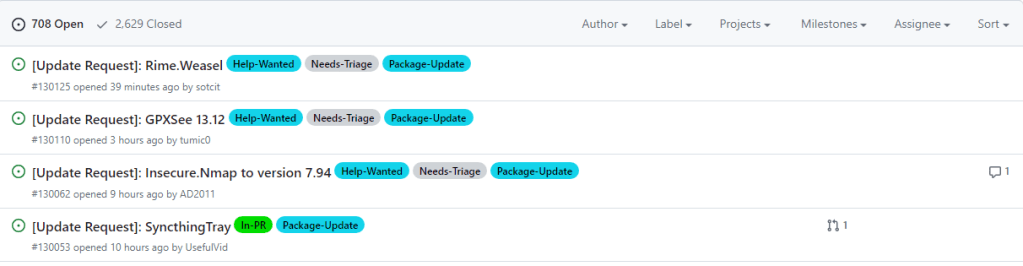
We are going to use the following request: [Update Request]: GPXSee 13.12 · Issue #130110 · microsoft/winget-pkgs (github.com).
This application isn’t part of Pckgr, but we will happily help them out!
Checking the Update Request
When checking an update request, we want to extract the following information from the request:
- Package Identifier
- New version number
- Download Links for the new version
Having a look at the update request, we were able to extract the package identified (“tumic0.GPXSee”) and the new version (13.12). Unfortunately, the download link for the new version was not provided so we will need to find this ourselves.
Checking the existing Manifest
The next thing we do is check out the existing manifest to see how it’s structured and how many installer links will be needed. Here is the link for the existing manifest: winget-pkgs/manifests/t/tumic0/GPXSee at master · microsoft/winget-pkgs (github.com). As you can see the format uses the first letter of the Package Identifier, followed by the Package Identifier name separated by forward slashes.
Here is the installer YAML file. We can identify that there is only one installer link required and that it’s a dynamic URL (each version has a unique URL).
# Created with Komac v1.11.0

# yaml-language-server: $schema=https://aka.ms/winget-manifest.installer.1.5.0.schema.json


PackageIdentifier: tumic0.GPXSee

PackageVersion: '13.11'

InstallerLocale: en-US

InstallerType: nullsoft

Scope: machine

InstallerSwitches:

  Custom: /norestart

UpgradeBehavior: uninstallPrevious

ProductCode: GPXSee

ReleaseDate: 2023-11-19

Installers:

- Architecture: x64

  InstallerUrl: https://sourceforge.net/projects/gpxsee/files/Windows/GPXSee-13.11_x64.exe

  InstallerSha256: F0936A3DD4FEA9532928BC84F920A80885DC0FE6B4A3E3647AC63C813F6A289E

ManifestType: installer

ManifestVersion: 1.5.0
Looking at the download URL, it looks like we might be able to simply replace the version (13.11 to 13.12) in the link to download the new version. Let’s test it out…It works!
Submitting the Update with Komac
Now that we have the new data for the manifest, it’s time to push the new update to WinGet. We will do this using the Komac CLI tool, you can view these simple instructions for installing Komac on your device.
To start the update process, we will enter “komac update” into PowerShell. This will then prompt for the Package Identifier.

Once the Package Identifier has been submitted it will ask for the new Package Version.
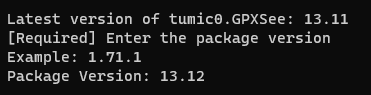
We will then enter the download link we modified earlier.

Komac downloads the installer to extract the hash file (used for security). Komac then completes the manifest creation and prompts to submit to Winget.
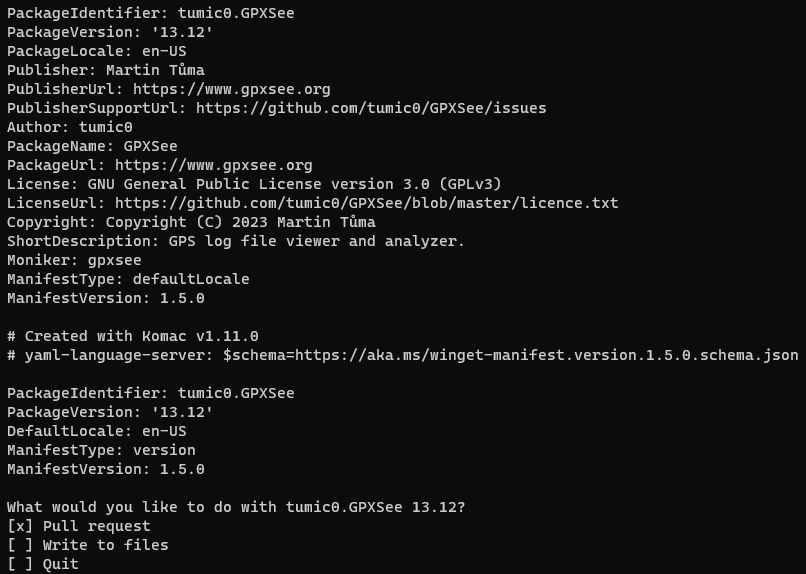
We completed the Pull Request and then headed over to GitHub to check the status.

The only thing to do now is to wait for the WinGet validation to complete and be approved by a WinGet moderator.
And that’s it!
Just kidding, a few more steps to go. The update request also mentioned that one of the previous versions (13.10) no longer has a valid download link and should be removed.
Removing the Old Version
Removing a version of an application is a very simple process. Again, we will use Komac to complete this. Starting off by entering the command “komac remove”.
We will then provide the identifier, version for the package and a reason for it to be removed.
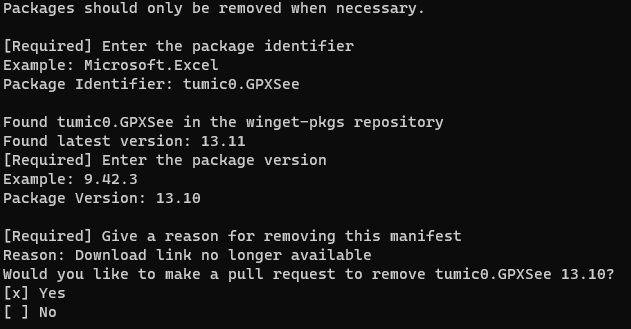
We submitted the Pull Request, which will proceed to go through the validation process before being removed from the repository.
Linking the Pull Request to the Update Request
Finally, we can notify the user that requested the update that it’s underway by mentioning the Update Request in the Pull Request.

Why should you submit updates?
There are many, many requests for Package Updates in the issue register by various users and many of these users likely possess the skills necessary to submit these updates themselves. This will reduce the overhead for the WinGet team and produce faster results. We’re here to show you just how easy it is to submit an update to WinGet.
Also, when you’re submitting your update, don’t forget to mention the original Update Request in your Pull Request. This way, the user who asked for the update knows it’s being taken care of. It’s a small step that keeps everyone in the loop and adds a personal touch to our community collaboration.
You can check out how to deploy WinGet packages to Intune easily with Pckgr.


Leave a comment