
Hey everyone,
We’ve got some exciting news for all the Mac users out there! Pckgr is not just for Windows anymore—we’ve expanded to support MacOS application deployments. 🎉 We know managing a mixed fleet of devices can be a challenge, so we’ve integrated Pckgr with Installomator to make deploying and managing MacOS applications as seamless as possible.
What’s the Big Deal?
Deploying MacOS applications has always been a bit tricky. You often have to deal with .pkg files, various scripts, and ensuring compatibility across devices. But with Pckgr’s new MacOS support, we’ve streamlined the process using shell scripts and via Installomator. Here’s what makes this feature awesome:
- Automated and Up-to-Date: The scripts automatically install the latest versions of your apps and can run periodically to keep everything current.
- Vetted and safe Applications: Using Installomator’s application ID check, you can ensure only expected applications will be installed securely.
- Professional Notifications: Deployments are integrated with swiftDialog to provide the end user with clean, professional looking notifications that show the user the install/update process.
- Seamless Integration: Manage both Windows and Mac applications in one place through Pckgr.
Demo: Deploying a MacOS Application with Pckgr
Step 1: Access the MacOS Application Library
First things first, log in to your Pckgr account.
- Navigate to the App Library: Once you’re logged in, click on the “App Library” in the dashboard.

- Select Your Tenant: In the library, choose the Intune tenant you want to deploy the MacOS application to from the dropdown menu. This step ensures that the app will be deployed to the correct Tenant.

Step 2: Choose a MacOS Application
Now, let’s find the app you want to deploy. For this demo, let’s say we’re deploying Slack.
- Select “Add New App”: Click the “Add New App” button to start adding a new application.
- Select MacOS Applications: From the dropdown menu, select “MacOS Applications.” You’ll now see a list of MacOS apps that Pckgr supports.
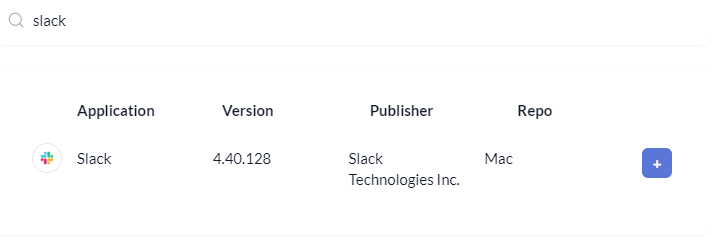
- Search for the Application: Use the search bar to find Slack, or simply browse the list until you find it.
- Add the Application: Click the ‘+’ button next to Slack to add it to your tenant’s library. And just like that, Slack is now part of your deployment catalog!
Step 3: Deploy the Application
Now that Slack is in your tenant’s library, it’s time to deploy it.
- Open Deployment Options: In your tenant’s library, locate Slack and click the three-dot menu next to it. Then select “Deployment” to open the deployment options.

- Deploy to Intune: Click the “Deploy to Intune” button. This is where the magic happens. Pckgr will generate a shell script tailored for Intune, which will handle the installation on your Mac devices. No need for packaging or extra scripting—just click, and you’re done!

Step 3: Syncing the Mac Device
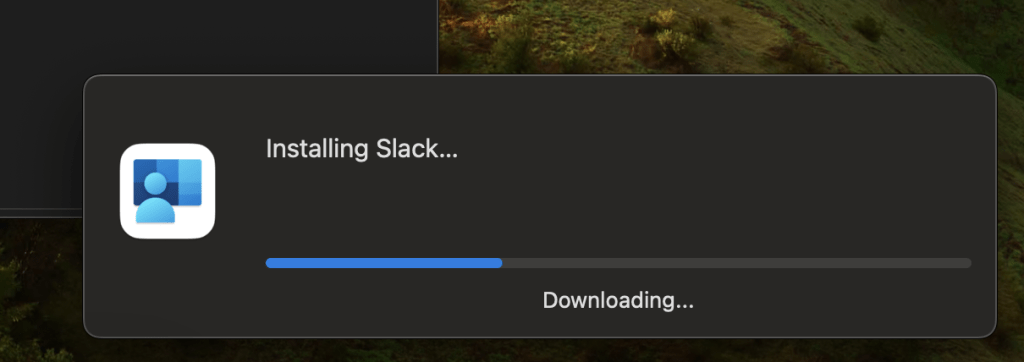
Once the application has been assigned to a device, the application can then install. To speed up the process, you can manually have the device check in via the Company Portal. Simply, click the “Check Status” button”

The device will check in to see if any applications have been assigned, as we had assigned Slack, the install was initiated.
Step 4: Monitoring the Deployment
Once you’ve hit deploy, it’s important to keep an eye on the deployment status to make sure everything goes smoothly.
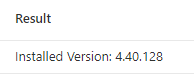
- Check Deployment Status in Intune: Head over to Intune and go to the “Device Status” section. Here, you can monitor the progress of your deployment. You’ll be able to see the version of Slack being installed on your Mac devices, ensuring they’re all up to date.
And That’s It!
Why You’ll Love This Feature
- Quick and Easy: No need to manually package or script your MacOS deployments.
- Automated Updates: The deployment script can run periodically, ensuring your MacOS apps are always up to date.
- Seamless Integration: Manage your Mac and Windows apps side-by-side within the same platform.
Ready to Give It a Try?
If you haven’t tried deploying MacOS applications with Pckgr yet, now’s the time! MacOS applications are now available in Beta for any customers on the Professional plan or higher! Log in to your dashboard and take it for a spin. As always, if you have any questions or need support, our team is here to help.
Happy deploying!

 Pckgr Blog
Leave a reply to amedley33730128a3 Cancel reply