
In today’s blog I want to look at an awesome new feature available in Intune, the ability to remove pre-installed Windows apps using a simple policy.
This is especially useful for cleaning up bloatware like Xbox and Solitaire, giving your devices a cleaner, more enterprise-ready starting point. I’ll show you how to set it up, how it behaves during an Autopilot build, and what quirks to watch out for.
Creating the Intune Profile
Start by heading to the Microsoft Intune Portal and creating a new Windows configuration profile using the Settings Catalog.
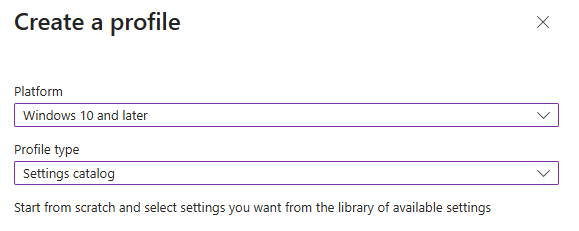
For this example, I’m going to name the Policy “Remove Pre-Installed Applications”.

Next, you want to add the setting under Administrative Templates\Windows Components\App Package Deployment (simply search “App Package Deployment” and it will pop up in the results). Select the setting “Remove Default Microsoft Store packages from the system.“
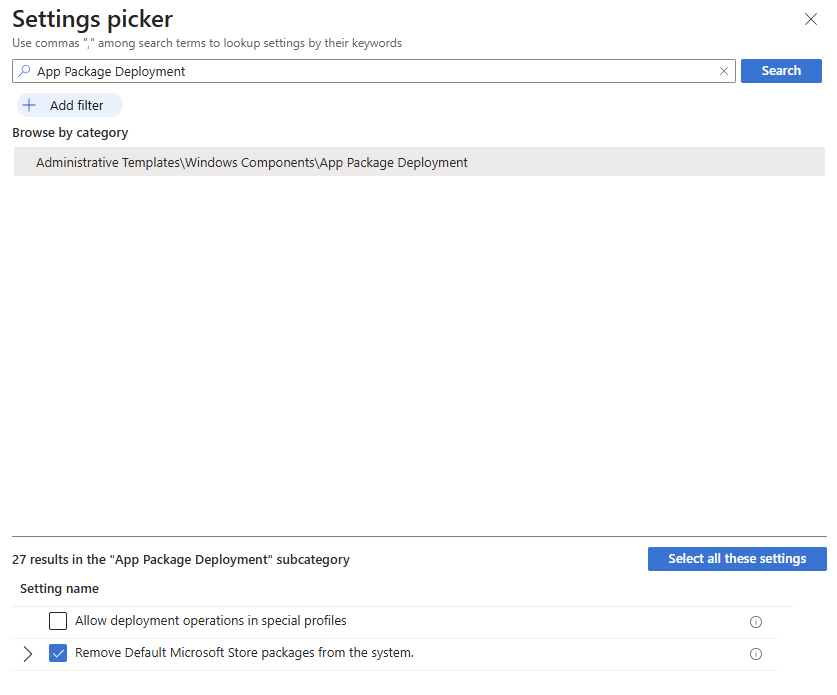
Next, enable the applications that you want removed from the device. I’ve selected a wide variety of applications so we can thoroughly test it, for instance I want to test if we remove the built-in Teams and Outlook, we can still deploy our Enterprise apps.

Testing the policy
For our test, we are going to deploy a brand-new test device via Autopilot with the policy applied. Let’s see what happens!
Using Pckgr, we are going to deploy our Microsoft 365 Apps and Microsoft Teams to ensure these are not impacted by the policy.

The Results
After the device was provisioned, I signed in to check it out and immediately found issues.
Not a great start.
Solitaire was still installed on the device even though it was in the included list of applications that should be removed.
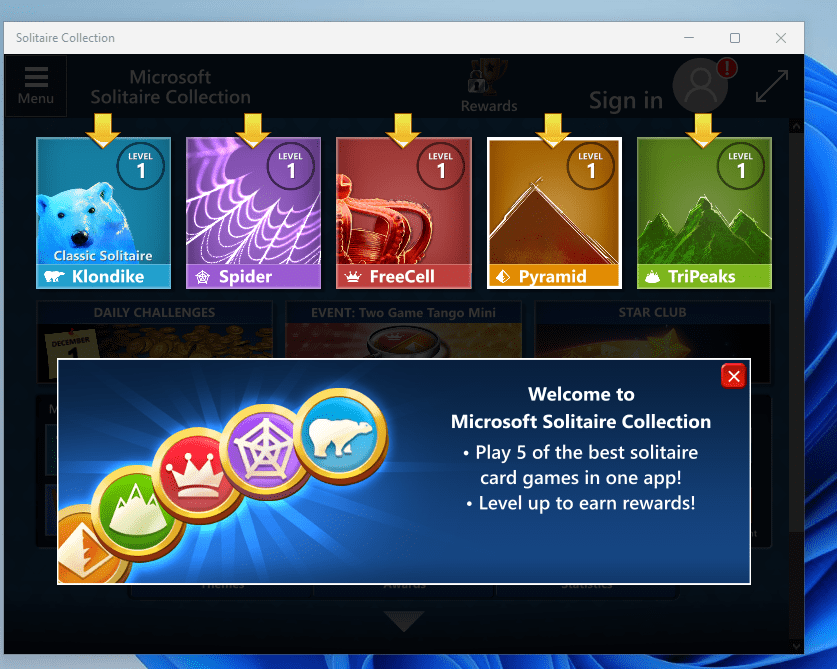
After further looking, it seemed like all applications were still installed.
Further Investigation
After some Googling, I was able to find a source suggesting that the device needed to be on feature version 25H2. To test this, I created a feature update deployment and applied it to my test machine.

I saved the policy and kicked off a sync on my device to speed up the process. I then ran Windows Update and sure enough, Windows 25H2 update started downloading. Now we wait.

Post Feature Update Testing
Now that the device had successfully upgraded to Windows 25H2, it was time to check if the policy was now working successfully.
Still there…
Looking at the policy it looked like my profile was showing not applicable.

I decided to use the remote wipe function to see what happens when I log in again.
Same issue again…
Back to the Drawing Board
After more Googling I found out that this policy did not work on Windows 11 Pro but needed to be Enterprise edition! I upgraded the device, refreshed the policy and sure enough our apps had been cleaned up, including Solitaire.
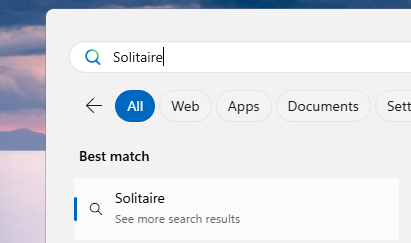
Checking our Office Applications
Now that the policy had applied successfully, I checked the Office applications to make sure there were no issues.
Interestingly…there was an issue.
The base 365 application installed fine, I was able to confirm the built-in Outlook was removed while the Enterprise version was still installed.

Now for the issue, Microsoft Teams failed to install. When checking the logs, the issue is clear:
+ Add-AppxPackage -Path 'C:\Windows\IMECache\20170f40-fde3-45a5-bbe9-d0 ...
+ ~~~~~~~~~~~~~~~~~~~~~~~~~~~~~~~~~~~~~~~~~~~~~~~~~~~~~~~~~~~~~~~~~~~~~
    + CategoryInfo          : NotSpecified: (C:\Windows\IMEC...\installer.msix:String) [Add-AppxPackage], Exception
    + FullyQualifiedErrorId : DeploymentError,Microsoft.Windows.Appx.PackageManager.Commands.AddAppxPackageCommand

because the package family name is in RemoveDefaultMicrosoftStorePackages policy override.
Deployment Add operation with target volume C: on Package MSTeams_25306.804.4102.7193_x64__8wekyb3d8bbwe from:
[12-01-2025 21:43:58.807] [Execution] [Execute-Process] :: Execution failed with exit code [1].
[12-01-2025 21:43:58.824] [Execution] [Exit-Script] :: PS_AppDeployToolkitMain_3.9.3_EN_01 Installation completed with exit code [1].
Our new policy is actually blocking the installation of Teams. Let’s see what happens when we turn off Teams from being removed via the policy.

Success! The Pckgr deployment worked, and the consumer Teams version was still removed as part of our package workflow.
My Summary
After a lot of trial and error, I was finally able to get the policy working and it actually works really well. Just make sure your devices are running Windows 11 Enterprise and are on 25H2. We also discovered adding Teams to the removal list option breaks our Teams deployment, so make sure this isn’t enabled.
Want to test it with your own apps and policies?
Remember, you can sign up for a free 30-day trial of Pckgr or book a free demo here.

 Pckgr Blog
Leave a reply to suhdoh Cancel reply