
Deploying Wireshark through Microsoft Intune sounds simple enough right? Grab the MSI, package it, assign it to a group and wait for devices to report success. Except every so often, a handful of devices come back with a 1603 error or a generic install failure. You log into one of those devices to investigate and Wireshark is already sitting there in Programs and Features. So why did the deployment fail on a machine that already has the app?
The short answer is that Wireshark ships two completely different Windows installers and they refuse to coexist on the same device. In todays blog we are going to walk through what is actually happening behind the scenes, how to tell which variant is on a given device, and what to do when you find a mix across your fleet.
The Scenario
You have packaged the Wireshark MSI, uploaded it to Intune, and assigned it as Required to a device group. The deployment rolls out and most devices report success, but a few come back as Failed with a 1603 error. You log into one of the failed devices to investigate, open Programs and Features, and Wireshark is sitting right there. The Intune logs don’t give you much to work with, just the 1603 and a generic installation failed message.
What you probably don’t know yet is that a user has already installed Wireshark manually on those devices, and they used a different installer than the one you packaged. This is surprisingly common with Wireshark specifically, because the kind of users who ask for Wireshark (developers, network engineers, security analysts) are also the most likely to grab it directly from wireshark.org without going through your deployment pipeline.
Testing the behaviour
To reproduce the failure in a controlled environment, we started with a clean Windows 11 VM and ran through the scenario manually.
Step 1 – we downloaded the Wireshark EXE installer and installed it, simulating a user who has grabbed it themselves. The install completed without issue and the application showed up in Programs and Features as Wireshark 4.6.4 x64.

Wireshark installed successfully via the EXE installer
Step 2 – we then tried to deploy the MSI variant of the same Wireshark version on top using Pckgr and Intune. The package install process ran and failed with a generic 1603 error. No real detail in the dialog, just a failure.
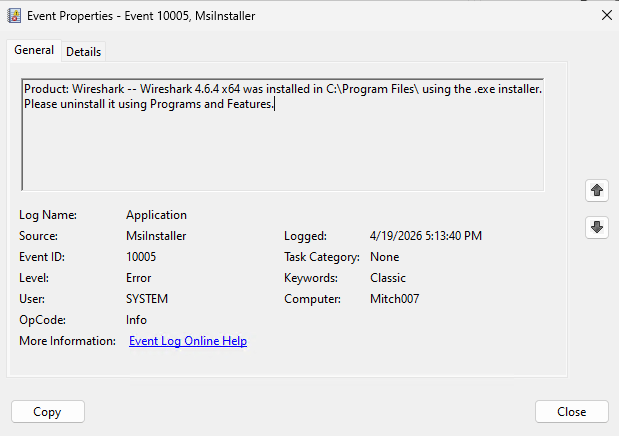
Step 3 – opening the Windows Event Viewer and filtering the Application log for MsiInstaller, the story became a lot clearer. The MSI had actually detected the existing EXE install and refused to continue:
Product: Wireshark — Wireshark 4.6.4 x64 was installed in C:\Program Files\ using the .exe installer. Please uninstall it using Programs and Features.
Event 10005 from MsiInstaller showing the MSI detected the existing .exe install
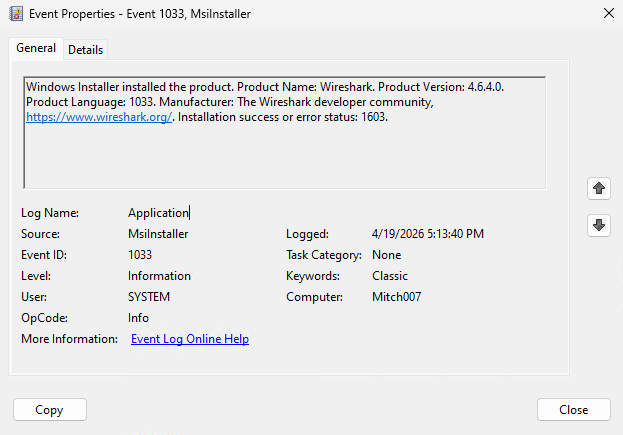
The matching Event 1033 confirmed the Windows Installer outcome with the same 1603 status code.
The same thing happens in reverse. If we start with the MSI installed and then try to run the EXE installer, the EXE is also blocked, confirming that both installers have their own detection logic to prevent the two variants from coexisting on the same device.
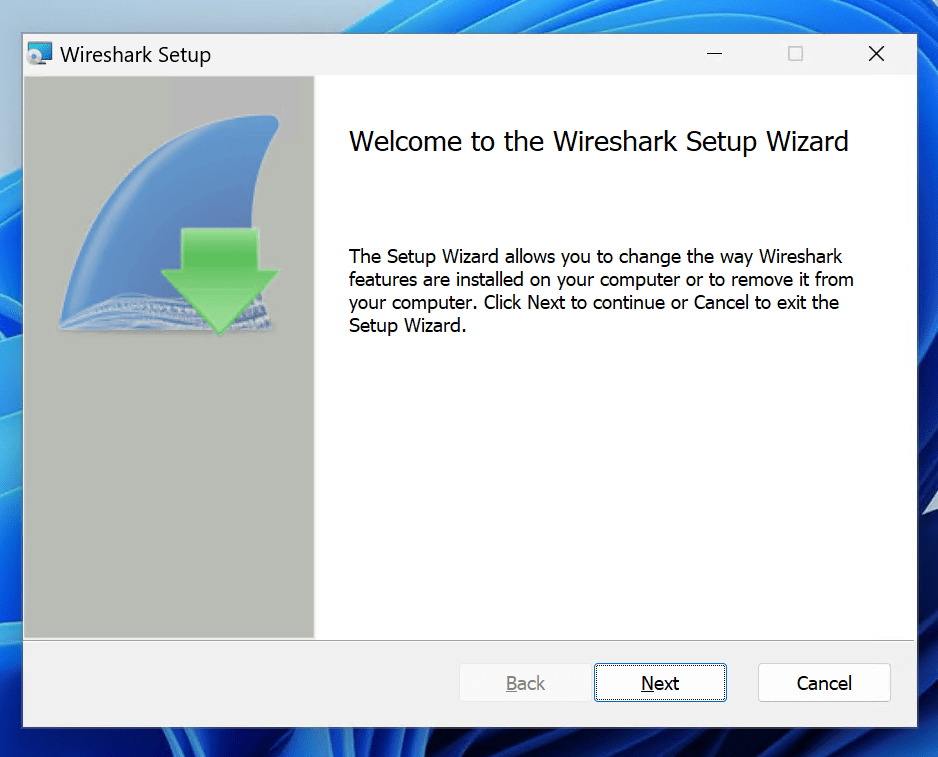
The EXE installer blocked when the MSI is already present
So the 1603 is not a broken installer, a corrupted MSI, or an Intune problem. It is Wireshark deliberately refusing to install on a device that already has the other variant. The frustrating part is that none of this shows up in the Intune failure message. You just see 1603 and have to go digging.
The Issue
Wireshark is one of a small number of applications that officially ships two completely different Windows installers: a traditional EXE built with NSIS, and a separately maintained MSI for environments that need Windows Installer packages. Both are legitimate, both are current, and both are available from the official download area.
When a user installs Wireshark manually from wireshark.org, they typically end up with the EXE because that is the most prominent download link on the page. When an IT admin packages Wireshark for Intune, they tend to reach for the MSI because it is easier to deploy and detect. That mismatch is where the 1603 errors come from. The admin’s MSI deployment lands on a device that already has the EXE, the MSI refuses to install, and the failure shows up in Intune without any obvious cause.
The two installers also record themselves on the device differently. The EXE installer registers itself in Programs and Features as Wireshark 4.6.4 x64, while the MSI installer registers itself as just Wireshark.

The same version installed via the MSI shows up simply as Wireshark
Underneath that, the two installers also use different uninstall registry key structures. The EXE writes to a name-based key at HKLM\Software\Microsoft\Windows\CurrentVersion\Uninstall\Wireshark, while the MSI writes to a GUID-based key at HKLM\Software\Microsoft\Windows\CurrentVersion\Uninstall\{XXXXXXXX-XXXX-XXXX-XXXX-XXXXXXXXXXXX}. From a detection script’s point of view, these two entries look like two completely different applications.
How to tell which installer is on a device
If you suspect a device has the wrong installer type, the quickest check is Programs and Features. Open it on the affected device and look at the full display name for Wireshark:
Wireshark X.X.X x64or similar with an architecture suffix → EXE installWiresharkwith no suffix → MSI install
If you need to check across your fleet rather than one device at a time, a short PowerShell query against the Uninstall hive will give you the same information:
Get-ItemProperty HKLM:\Software\Microsoft\Windows\CurrentVersion\Uninstall\* | Where-Object { $_.DisplayName -like 'Wireshark*' } | Select-Object DisplayName, DisplayVersion
Run that through a proactive remediation script or an RMM tool and you can quickly build a picture of which devices have which variant.
What to do next
Once you know which variant is on each device, you have a few ways to resolve the 1603 failures.
The most direct fix is to uninstall the unwanted variant first. For devices where users installed the EXE and you want them on the MSI, deploy an uninstall package targeting the EXE to that group, then let the MSI install proceed on the next deployment cycle. The same pattern works in reverse if you are standardising on the EXE.
A broader approach is to standardise your fleet on one installer variant and prevent users from introducing the other. If manual installs are a recurring problem, this is a good reason to look at AppLocker or Windows Defender Application Control to stop users from installing applications outside your managed deployments.
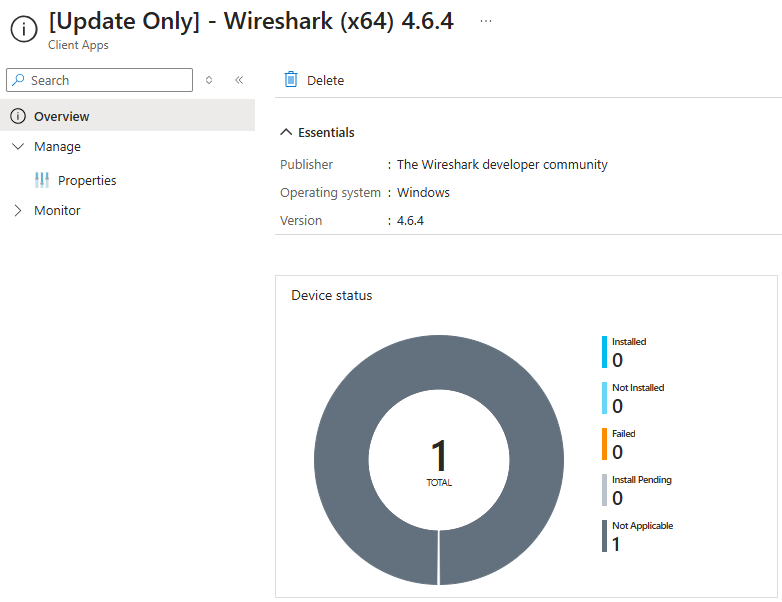
If you are using Pckgr with Update Only mode, this whole scenario is handled for you automatically. Update Only uses a pre-requisite script that scans the Uninstall hive and filters by DisplayName before attempting an update:
# Get the Application properties$AppProperties = Get-ItemProperty HKLM:\Software\Microsoft\Windows\CurrentVersion\Uninstall\* | Where-Object { $_.DisplayName -eq 'Wireshark' }# Check if the application is foundif ($AppProperties) { Write-Host "Application Found" exit 0}else { exit 1}
If the target variant isn’t present, the device reports Not Applicable in Intune rather than failing with a 1603. The update simply doesn’t run on devices that have the other variant, which means your install status dashboard stays clean and you can chase the underlying install state separately instead of fighting failed deployments.
The 1603 failure when deploying Wireshark isn’t a broken installer or a bad package. It is Wireshark protecting the integrity of whichever variant is already on the device. Once you know the two installers exist and how to tell them apart, the mystery failures disappear and you can plan your Wireshark deployments with confidence.


Leave a Reply