
If you manage applications Intune applications with Pckgr, you know the routine after every new app deployment. The app lands in Intune, and then you head into the admin center to sort out who actually gets it. Required for this group, available for that one, a pilot ring over here. It is a small job on its own, but it adds up across a full catalogue of apps, and it is easy to forget a group until someone asks why the software has not turned up on their machine.
We have just shipped a feature in Pckgr that handles this for you.
Set the groups before the app ships
You can now set the Entra ID group assignments for an app directly from Pckgr, before it is ever deployed to Intune. When the app is first pushed out, Pckgr applies those assignments for you, so it arrives in Intune already targeted at the right groups.
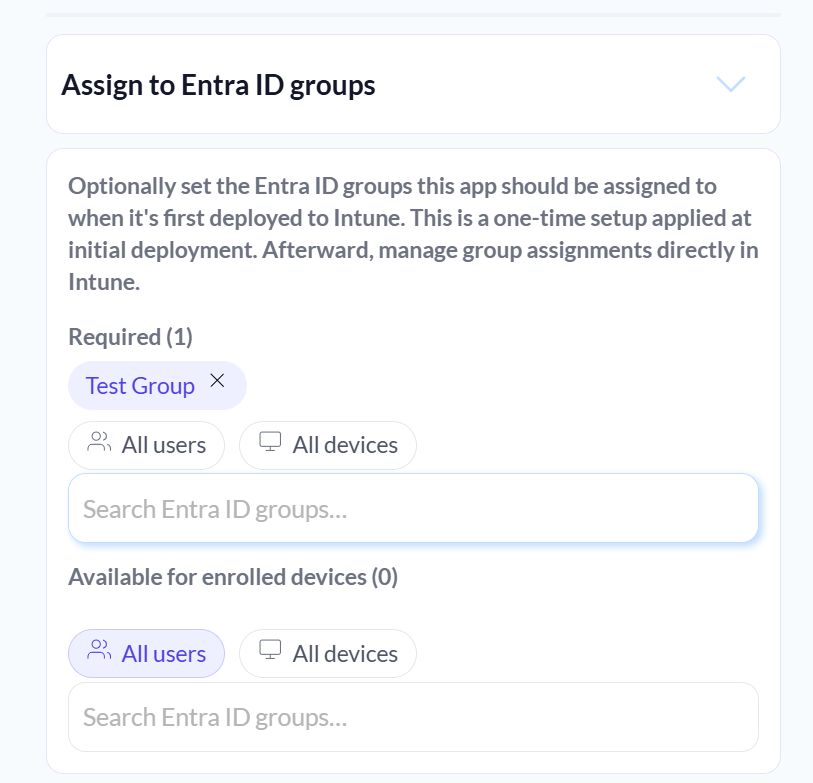
In the Assign to Entra ID groups panel you can set:
- Required groups, for apps that should install automatically
- Available for enrolled devices groups, for apps users install themselves from Company Portal
- The built-in
All usersandAll devicestargets, if you want broad coverage without picking a named group
Search for an Entra ID group by name, drop it into the right list, and that is the setup done.
A one-time setup, not an ongoing override
It’s important to note, this is a one-time setup applied at the initial deployment only. Pckgr does not reach back into Intune and reset your assignments every time an app updates.
So what happens on an update? Pckgr copies the group assignments across from the previous Win32 app version. Whatever groups were sitting on the old version carry straight over to the new one.
This keeps the feature backwards compatible with how you already work. If you set the starting groups in Pckgr and then later adjust them directly in Intune, say adding a new pilot ring or moving a department across, those changes are safe. They travel with the app through every update from that point on. You keep control on the Intune side, and Pckgr does not touch your assignments after the first deployment.
Final notes
Group assignments are optional. If you leave the panel empty, nothing changes from how Pckgr deploys today, and you can carry on managing assignments entirely in Intune. But if you would rather have new apps land already pointed at the right groups, you can set that once and let it run.
Trial free for 30 days at https://intunepckgr.com. No credit card required.


Leave a Reply