Onboarding a new client tenant into Pckgr has always meant a bit of repetitive setup. You add each application to the library, then configure it for every one of them. That means setting the install and update behaviour, the PSADT settings, and everything else that makes the app deploy the way you want. If your standard build is fifteen or twenty apps, that is fifteen or twenty rounds of the same configuration, repeated for every new tenant you bring on.
We have just shipped a feature that takes that repetition away. Application Templates let you bundle a set of apps and their deployment settings into a single reusable template. Build it once, then deploy the whole bundle to a new tenant in a couple of clicks.
Here is how it works.
Creating a template
You start by giving the template a name and a short description. The description is just there to remind you what the template is for, so use whatever makes sense to you later.
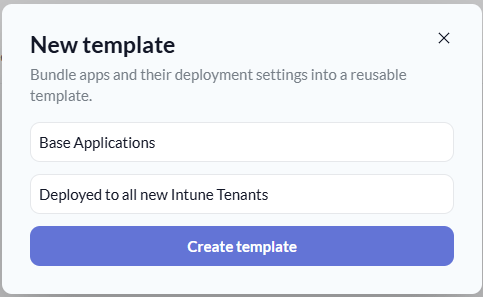
In our demo we have called ours “Base Applications” with the description “Deployed to all new Intune Tenants”. Click Create template and you have an empty template ready to fill.
Adding your configured apps
This is the part that saves the most time. Rather than configuring every app from scratch, you pull in apps you have already set up in an existing tenant, along with their deployment settings.
Under Add a configured app, choose a tenant you have already configured, then pick the apps you want from the dropdown. Each app comes across with its existing settings attached, so an app you have set to Update Only mode arrives in the template that way, not as a fresh install.
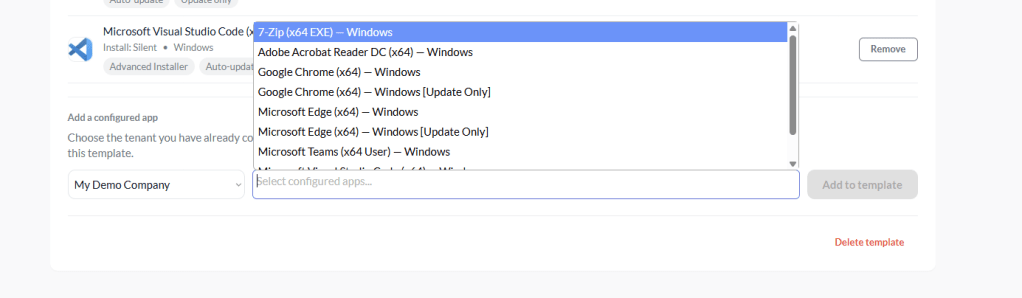
You can mix and match as much as you like. Add 7-Zip, Chrome, Edge, Acrobat Reader, and whatever else makes up your standard build, then click Add to template for each. Every app keeps the install and update behaviour, the PSADT settings, and everything else you already dialled in.
Note: Because the template borrows settings from a tenant you have already configured, it is worth setting up one “reference” tenant carefully and using it as the source for your templates.
Deploying the template to a new tenant
When a new tenant comes on board, go to their app library and open the Add Application popup. Down the bottom you will find Deploy template.
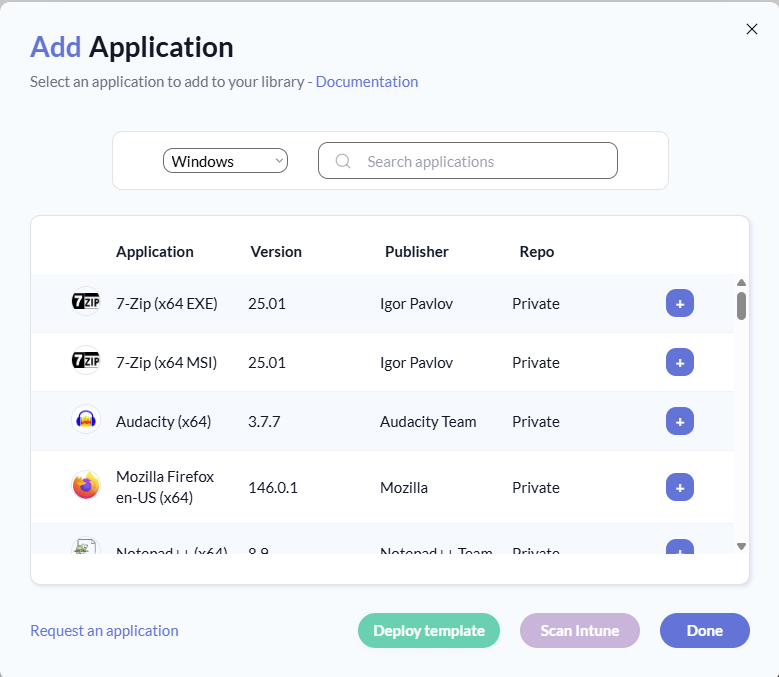
Pckgr then asks which tenant you are deploying to and shows every app in the template, all ticked by default. If there is something you do not want for this particular client, just untick it. Everything else goes across.
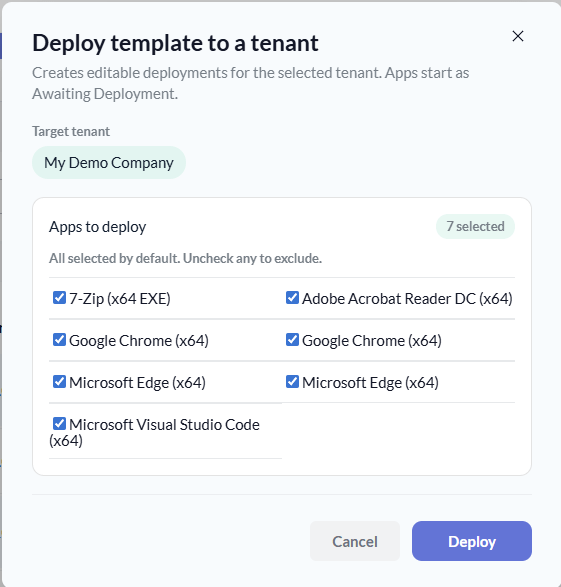
Click Deploy and Pckgr creates an editable deployment for each app in the target tenant.
What lands in the new tenant
Once the template has been deployed, every app shows up in the tenant’s application list with a status of Awaiting Deployment. The Update Only variants come through as their own entries, exactly as you configured them in the template.
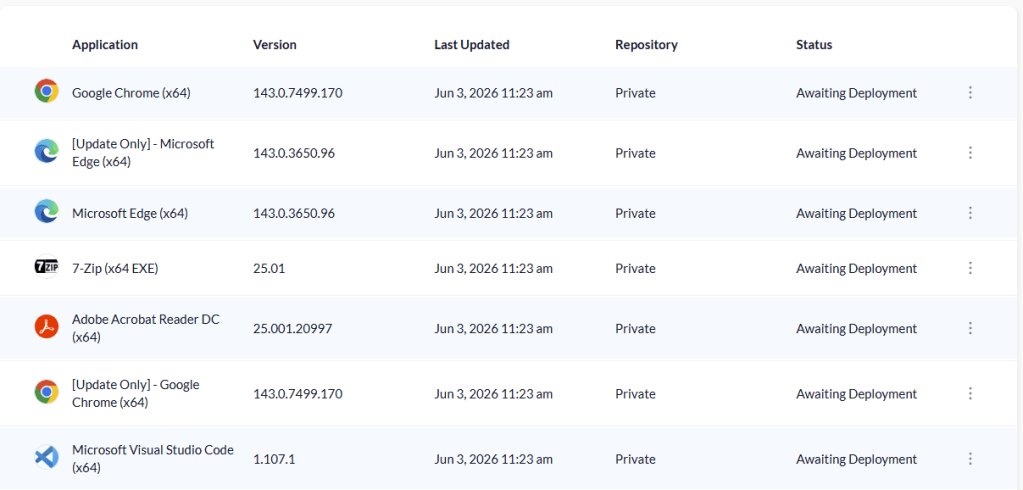
From here the apps behave like any other deployment in Pckgr. They are fully editable, so you can tweak anything for this specific tenant before pushing it live. Nothing is locked just because it came from a template.
That is the whole point. Set your standard build up once, and every new tenant gets the same apps with the same settings, without you clicking through the configuration screens again.
Try it out
Application Templates are live now in Pckgr for Intune. If you manage more than one tenant, this is the quickest way to get a new one to a consistent baseline.


Leave a Reply