
Custom Applications started life as a simple popup on the dashboard. You uploaded an installer, it ran through testing, and that was about it. It did the job, but it was thin. There was no real way to manage an app once it was in, and a single page refresh at the wrong moment could undo a testing run you had been waiting on.
So we rebuilt it from the ground up.
Custom Applications 2.0 is a proper feature now. You get retries, persistent testing progress, ability to add updates with automatic redeploy, and the option to skip automated testing entirely when you already know what your app needs. Here is what changed, and then a walkthrough of adding an app from scratch.
What is new
A quick rundown before we get into the demo:
- One-click retry on failed testing. If an app fails its test run, you no longer have to resubmit the whole thing. One button click puts it back through testing.
- Testing progress survives a refresh. Previously, refreshing the page during a test run lost your progress. Now the progress is kept, so you can close the tab, come back later, and pick up where you left off.
- New versions with automatic redeploy. Upload a new version of an app, and once it passes testing, Pckgr deploys the update to any tenant that already had the app. No manual redeploy per tenant.
- Skip automated testing. If you already have your own install command, uninstall command, and detection rule, you can bypass the testing phase completely and go straight to a verified app.
Lets add an app!
Adding a custom application
For this walkthrough we are packaging FortiClient VPN from Fortinet. The flow is five steps, and the progress bar at the top tracks where you are.
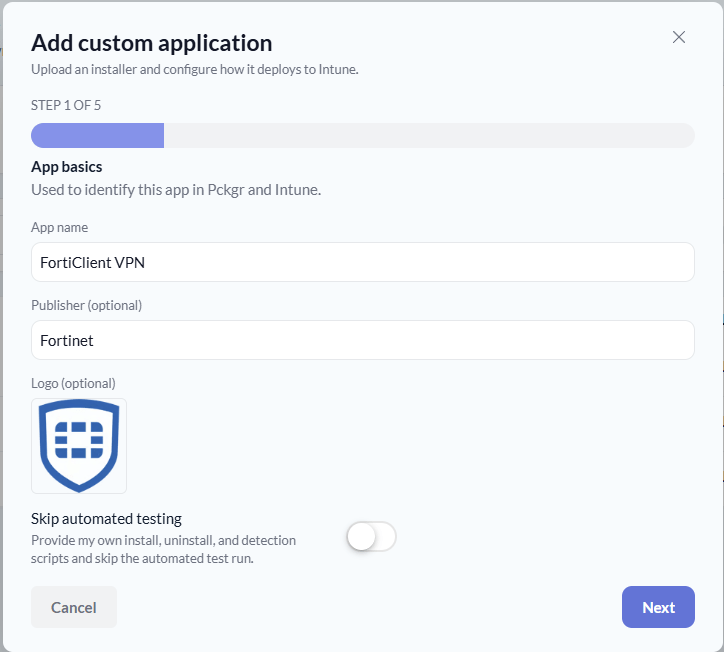
Step 1: App basics
First we give the app a name and a publisher. These are used to identify the app inside Pckgr and in Microsoft Intune. You can also drop in a logo if you want it to look tidy in the portal.
This is also where you decide whether to let Pckgr test the app for you or skip testing and supply your own scripts. We are leaving Skip automated testing switched off for this run, so Pckgr works out the install and detection for us.
Step 2: Installer
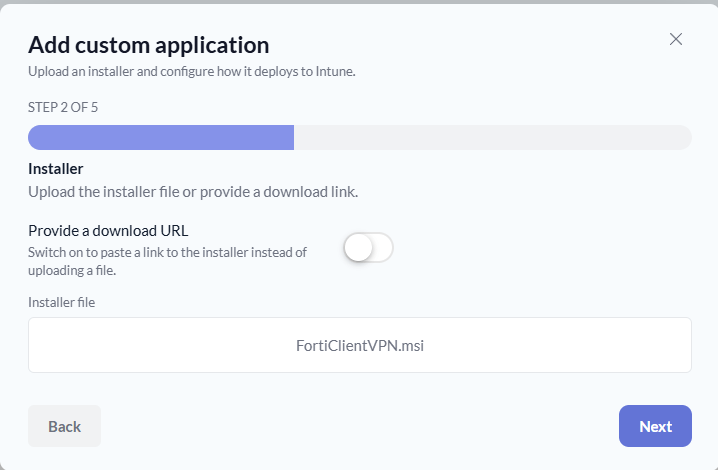
Next we hand Pckgr the installer. You can upload the file directly, or flip Provide a download URL on and paste a link to the installer instead. We are uploading FortiClientVPN.msi.
Step 3: Install and detection
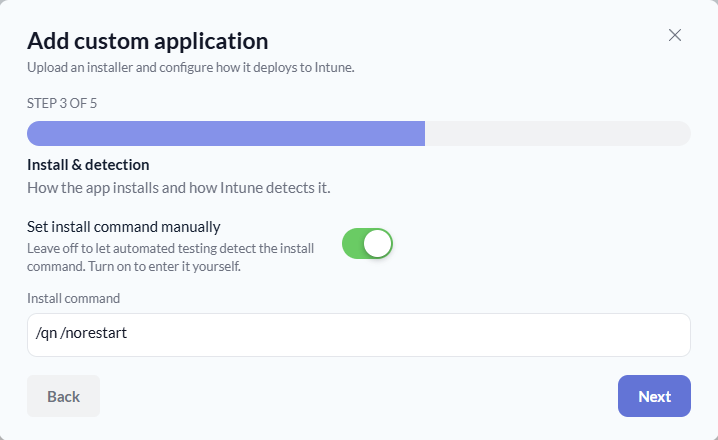
This step controls how the app installs and how Intune detects it once it is on a device.
Leave Set install command manually switched off and automated testing will work out the install command for you. We know this one already, so we have turned it on and entered /qn /norestart to run the MSI quietly with no reboot.
Step 4: Dependencies
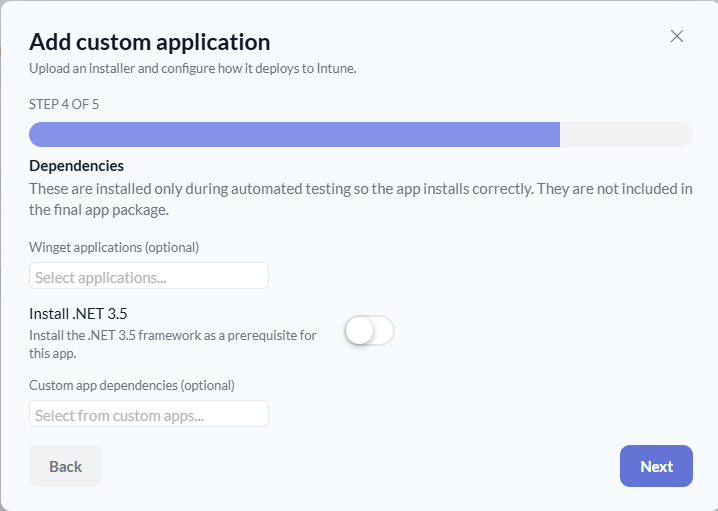
Some apps will not install cleanly on their own. This step is where you list anything that needs to be present first.
These dependencies are installed only during automated testing so the app installs correctly. They are not bundled into the final package. You can add Winget applications, toggle on .NET 3.5 as a prerequisite, or pull in other custom apps you have already added. FortiClient VPN does not need any of these, so we leave them empty.
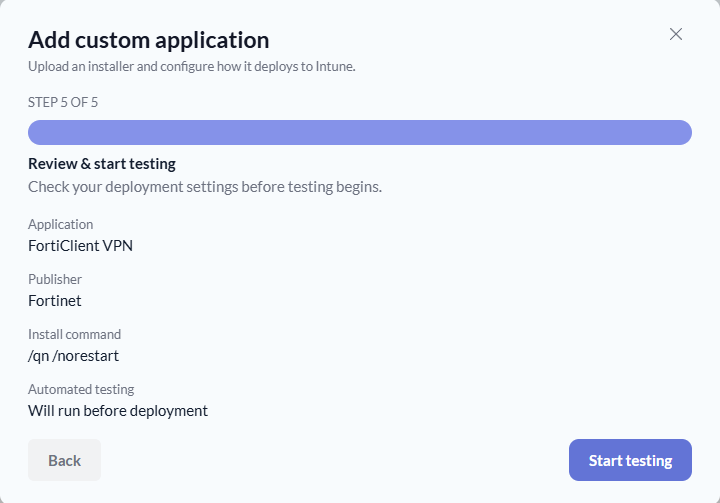
Step 5: Review and start testing
Last step. We get a summary of everything: the application name, the publisher, the install command, and a note that automated testing will run before deployment.
Everything looks right, so we click Start testing.
The app now appears in your list with a Testing... status. This is one of the bigger changes in 2.0. You can refresh the page, close the tab, or come back tomorrow, and the testing progress is still there.

Editing and finishing an app
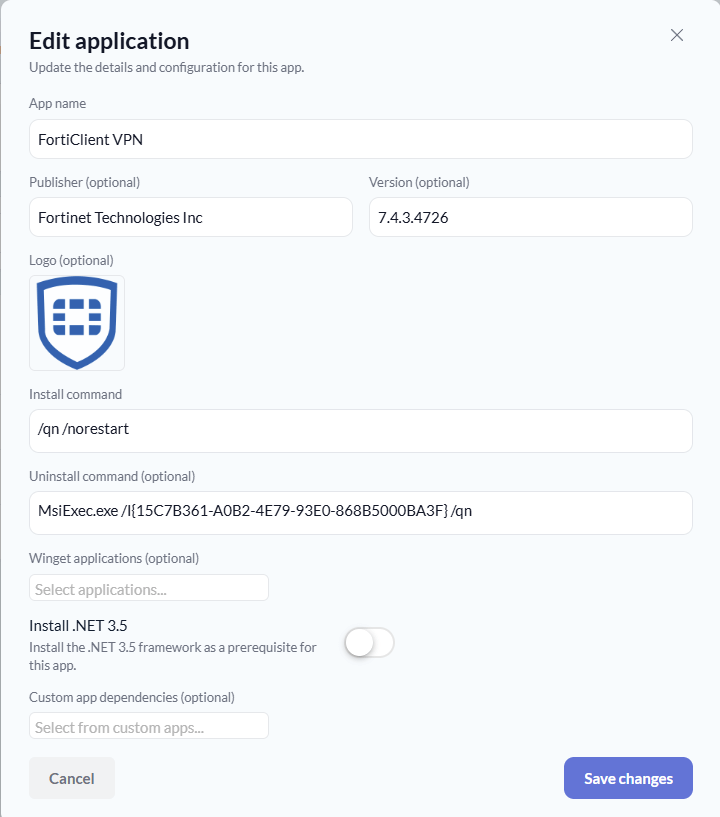
Once testing is done, you can open the app and fill in the rest of its details. Click into the app to open the Edit application view.
Here we have added the full publisher name, the version number, and an uninstall command so Intune can cleanly remove the app later:
MsiExec.exe /I{15C7B361-A0B2-4E79-93E0-868B5000BA3F} /qn
This is also where the version field matters. When you come back later with a newer build, you can simply submit a new installer for testing again, and on a pass Pckgr redeploys it to every tenant that already had the app.
Save the changes and the app flips to a Verified status with its version showing in the list. It is ready to deploy.

Fixing a failed app
Not every app passes the first time, and that is fine. This is where 2.0 earns its keep.
Here we tried to add Notepad++ and it came back with a Failed status. In the old version, that was a dead end. You would resubmit the whole app and hope for the best. Now you can open the app, see exactly what went wrong, fix it, and put it straight back through testing.

Notepad++ failed its test run. So what went wrong?
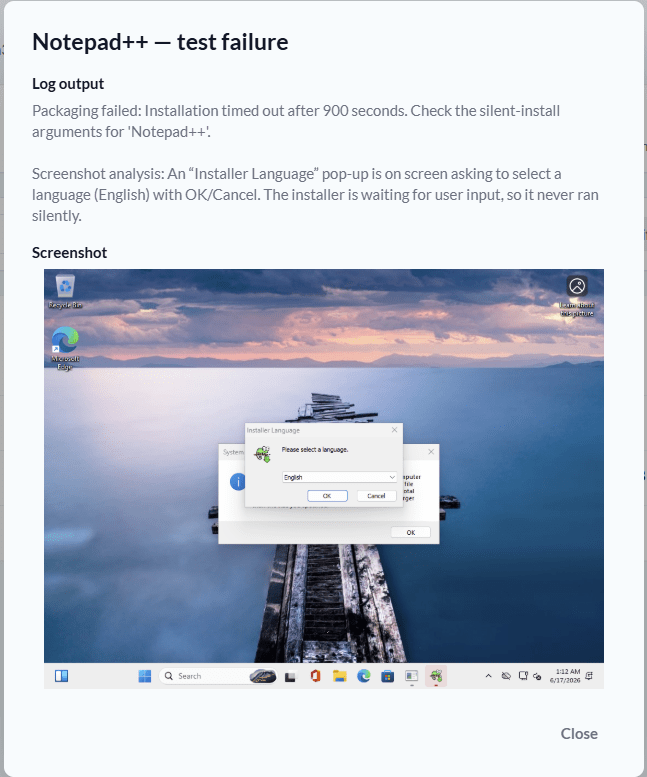
Open the failed app and Pckgr shows you the test failure detail. You get the log output, an analysis of the screenshot taken during testing, and the screenshot itself.
In this case the log says installation timed out after 900 seconds and to check the silent-install arguments. The screenshot analysis spells it out: an Installer Language pop-up was sitting on screen waiting for someone to pick a language and click OK. The installer never ran silently, so it just sat there until it timed out.
So what caused it? The install command. We had entered /VERSILENT, which is not the silent switch Notepad++ uses. Because the switch was wrong, the installer fell back to its normal interface and threw up the language picker.
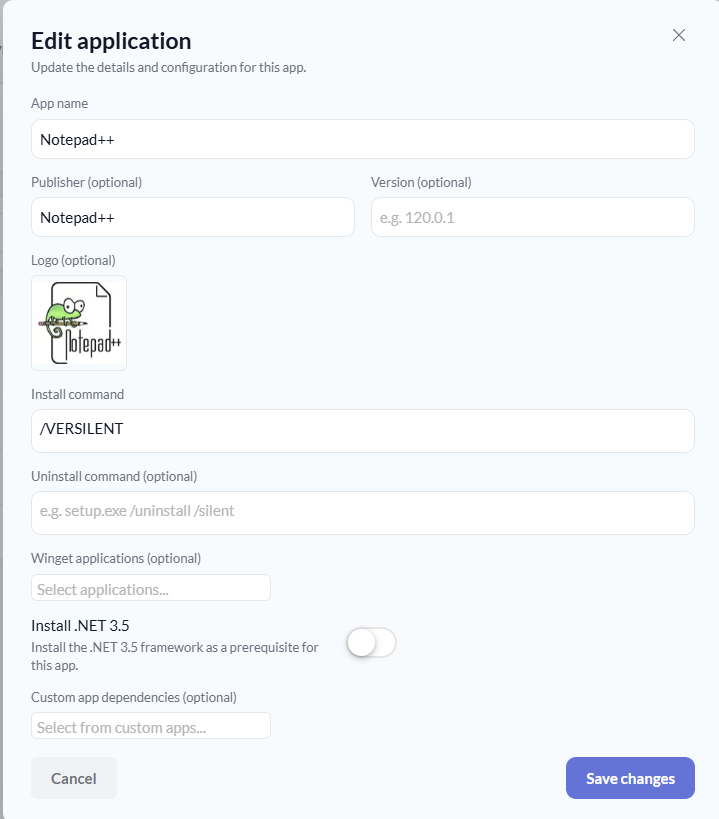
Notepad++ is an NSIS installer, and its silent switch is /S. So we open Edit application, swap /VERSILENT for /S, and save.
Saving the corrected command puts the app straight back into Testing. No resubmit, no starting over.
One change, and Notepad++ is back in testing.

That is the one-click retry in action. If an app fails for a transient reason and nothing actually needs changing, the retry button reruns testing on its own without an edit at all.

Try it
Custom Applications 2.0 is live in Pckgr now. If you have apps that need their own installer, this is the cleanest way to get them tested, verified, and deployed to Intune without babysitting each tenant.
In the next blog we will cover two more parts of 2.0: adding an app with automated testing skipped so you can supply your own commands and detection rule, and uploading a new version of a custom app to push the update out automatically.
Sign up now at https://intunepckgr.com for a free 30 trial and test it out yourself.
 Pckgr Blog
Leave a comment