
A little while back we wrote up how to package Autodesk DWG TrueView for Microsoft Intune using Pckgr. Autodesk has since shipped the 2027 release, and plenty of you have asked for an updated walkthrough. There’s a good reason to revisit it too. Since that last post we’ve rebuilt the Custom Application feature from the ground up, and one of the new additions makes an app like TrueView far easier to handle.
DWG TrueView is a big installer. The offline package weighs in at roughly 2.4 GB once it’s zipped, which is exactly the kind of app that used to be awkward to get into a packaging workflow. Here’s how it comes together now.
What’s changed in Custom Applications
If it’s been a while since you last created a Custom Application, the flow will look quite different. We’ve moved to a guided five step wizard that walks you through the app basics, the installer, the install and detection settings, and the deployment options. A few of the changes worth calling out:
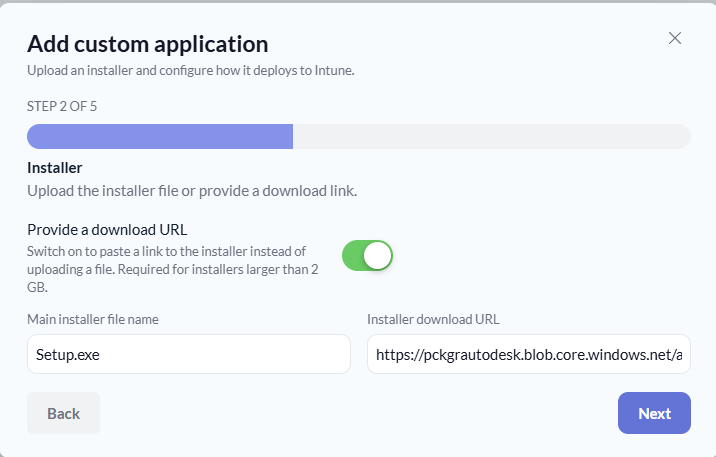
- Provide a download URL instead of uploading. Uploads are capped at 2 GB, so for anything larger you can now point Pckgr at a download link. This is what makes TrueView workable, since the zipped installer sits above that limit.
- Set the install command manually if you already know it, or leave it off and let the automated testing work it out for you.
- Skip automated testing and supply your own install, uninstall, and detection scripts when you’d rather bring your own.
For TrueView we’ll lean on the download URL option, since the installer is too large to upload directly.
Note: The 2 GB upload limit is a hard ceiling. If your zipped installer is over it, the download URL is the way to go.
Step 1: Download and extract the offline installer
Head to the Autodesk DWG TrueView page and download the installer. What you get is the online (bootstrapper) installer, named something like Create_Installer_PLC0000037_2027_English_WIN64.exe. Copy it into a local folder to work from.
Open a command prompt in that folder and run it with the -q flag:
Create_Installer_PLC0000037_2027_English_WIN64.exe -q

This extracts the complete offline installer into your Downloads folder. Give it a few minutes to finish.
Step 2: Zip the installer
Open the extracted folder. You’ll see Setup.exe alongside a manifest folder, a 3rdParty folder, an x64 folder and the supporting files. Select all of the files and folders, right click on Setup.exe, and compress the selection to a ZIP file.
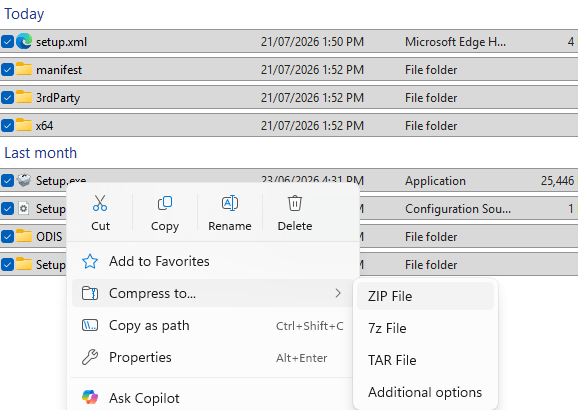
This part matters. You want the ZIP to contain the files at its root, not tucked inside another folder. If you zip the parent folder, Setup.exe ends up one level too deep and the install will fail to find it. Name the archive TrueView2027.zip.
Step 3: Upload the ZIP to Azure Blob storage
Because the finished ZIP is around 2.4 GB, we won’t upload it to Pckgr directly. Instead, drop it into an Azure Blob storage container (any cloud bucket with a direct download link works just as well). If you don’t already have a storage account set up, you’ll need to create one first.
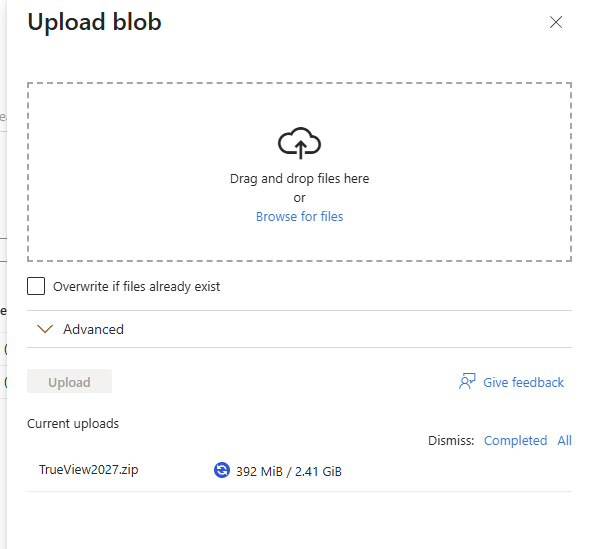
Wait for the upload to complete, then grab the blob URL for the file. We’ll paste that into Pckgr in the next step.
Step 4: Create the Custom Application in Pckgr
Go to intunepckgr.com/customapplications and select + Add Custom Application.
App basics. Enter the details so Pckgr can identify the app:
- App name: DWG TrueView
- Display name: DWG TrueView
- Publisher: Autodesk
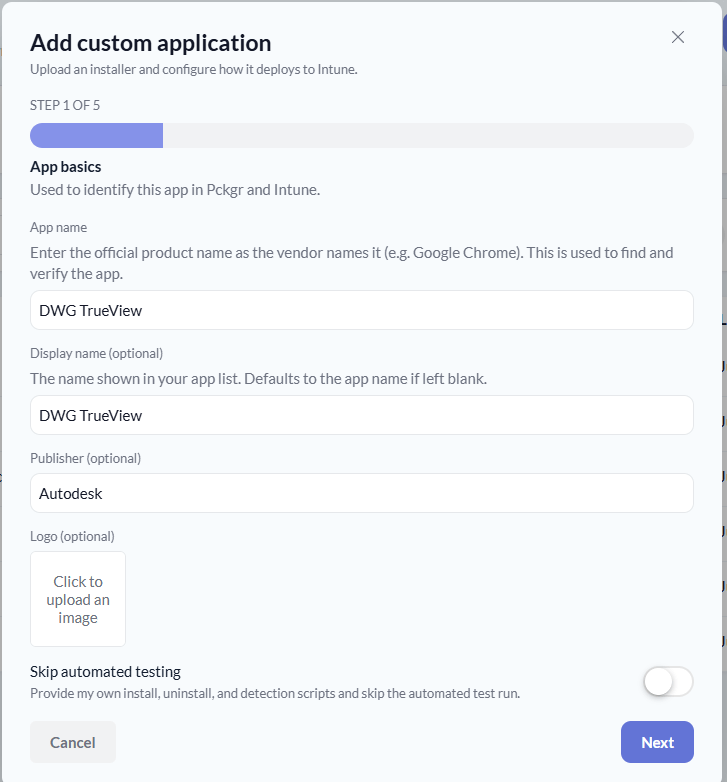
Installer. Switch on Provide a download URL, paste the blob URL you copied earlier, and set the Main installer file name to Setup.exe. This tells Pckgr which file inside the ZIP to run.
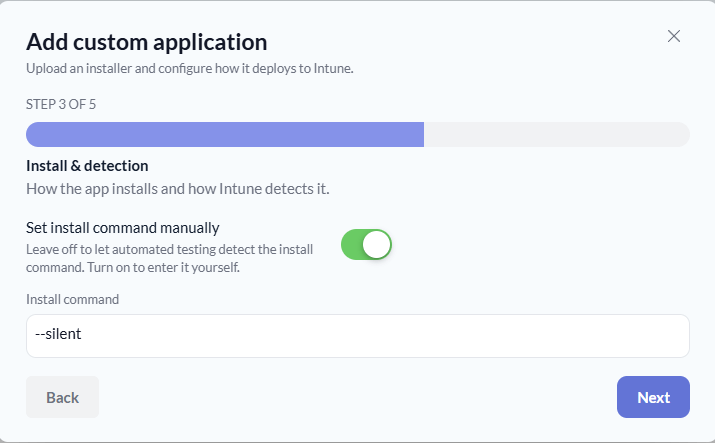
Install and detection. Turn on Set install command manually and enter the silent switch:
--silent
Step 5: Run the automated testing
With the details in, kick off the testing. This is where Pckgr does the heavy lifting. In the background it spins up a clean machine, downloads your installer, runs the install command, and works out the detection logic and uninstall string for you. It typically takes 10 to 15 minutes.
Once it finishes, the app shows as Verified with its detected version, in this case 26.0.60.0.

Step 6: Deploy to Intune
Now the easy part. Head to intunepckgr.com/apps, select Add Application, then choose Custom Library. Find DWG TrueView in the list and select the +.
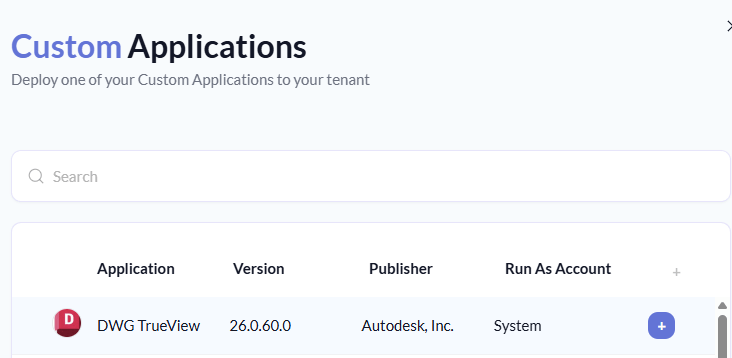
Pckgr pushes the application into Microsoft Intune with the detection rules and uninstall command already populated. Assign it to a group, and you’re done.
That’s the whole thing. A 2.4 GB Autodesk installer, packaged, tested, and deployed without touching a detection script by hand. If you’d like to try it on your own tenant, you can start a 30 day trial at intunepckgr.com,


Leave a Reply