If you manage a fleet of ThinkPads, Lenovo Commercial Vantage has almost certainly landed on your to-do list at some point. It is the enterprise-managed version of Lenovo Vantage, and it is how you get BIOS settings, driver updates and hardware diagnostics into a shape you can control centrally from Microsoft Intune.
Getting it there is another matter. Lenovo ships it as a zip full of moving parts rather than a tidy MSI, and the first time you open that archive it is not obvious which file you are supposed to point Intune at.
In this blog we will package Commercial Vantage as a Custom Application in Pckgr, from download through to a verified app sitting in your tenant.
What is actually in the download
Head to the Lenovo Commercial Vantage download page and grab the latest package. At the time of writing that is LenovoCommercialVantage_20.2603.19.0.20260623030413.zip.
Extract it and there is more inside than you might expect:
VantageInstaller.exe, the orchestrator that does the real work- The Commercial Vantage MSIX bundle itself
- An installer for Lenovo System Interface Foundation
- An installer for Lenovo Vantage Service
setup-commercial-vantage.bat, Lenovo’s sample deployment script- ADMX and ADML files for Group Policy, plus a few sample
.regfiles
That is three separate installers and a sideloaded MSIX, all of which need to land in the right order. This is exactly the sort of app that turns into a bespoke PowerShell wrapper and a detection script you will still be maintaining in two years.
The good news is that VantageInstaller.exe already handles the sequencing. You just need to hand it the right arguments.
Step 1: App basics
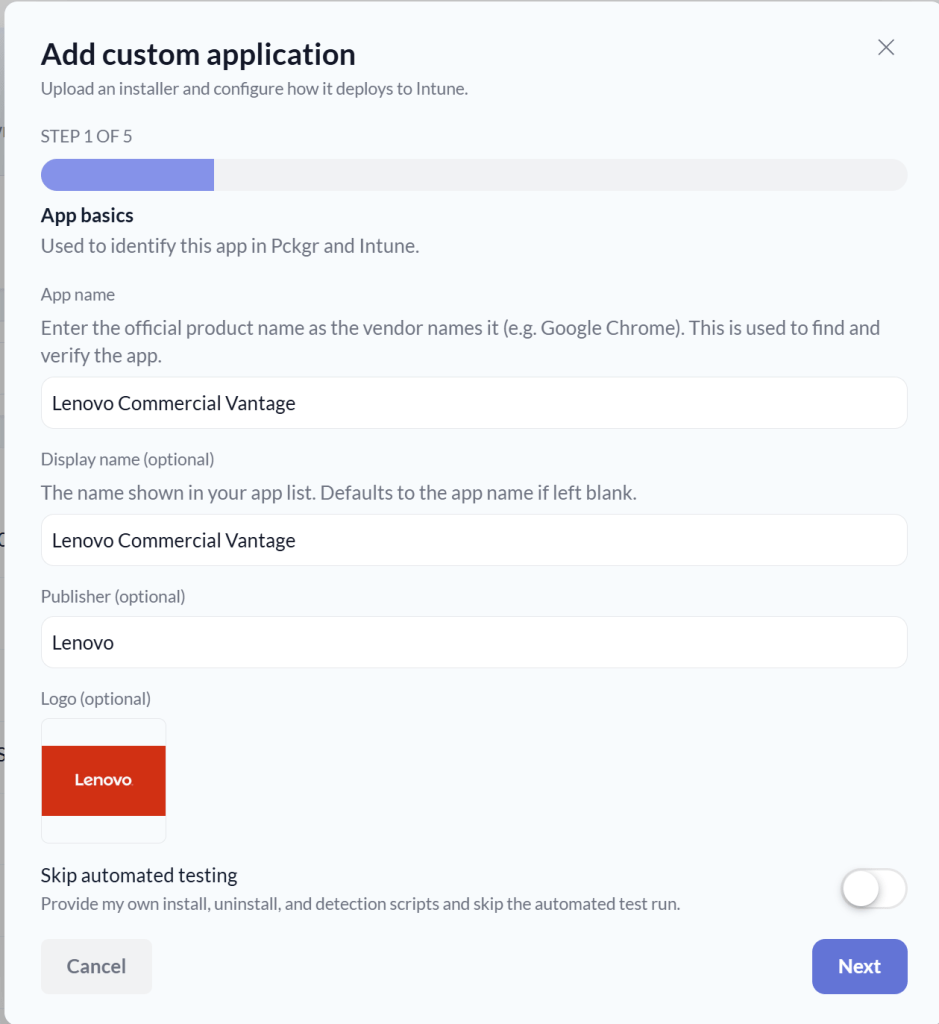
In Pckgr, open Add custom application. The first step is identification.
Set App name to the official product name as Lenovo publishes it, so Lenovo Commercial Vantage. This matters more than it looks, because Pckgr uses that name to find and verify the app after install. A nickname like “Vantage” will cause you grief later. Display name is what appears in your app list, and Publisher we set to Lenovo.
Leave Skip automated testing switched off. That toggle exists for cases where you want to supply your own install, uninstall and detection scripts and bypass the test run. For Vantage we want the automated test, because that is what proves the install command works before it reaches a single endpoint.
Step 2: Pointing at the installer
Step 2 is where the zip goes. Uploads are capped at 2 GB and Commercial Vantage sits well under that, so we can upload the archive directly rather than switching on Provide a download URL.
Two fields do the heavy lifting.
Main installer file name tells Pckgr which file inside the zip to run. This is the part that catches people out. It is not setup-commercial-vantage.bat, and it is not the MSIX bundle. It is VantageInstaller.exe.
Installer architecture stays on x64 unless you are packaging specifically for Windows on ARM, in which case choose ARM64. Lenovo’s ARM builds normally carry arm64 in the file name, so it is easy enough to tell them apart.

Step 3: The install command
By default Pckgr works out the install command for you during automated testing. Commercial Vantage is one of the cases where you want to take over, because VantageInstaller.exe does not use conventional switches.
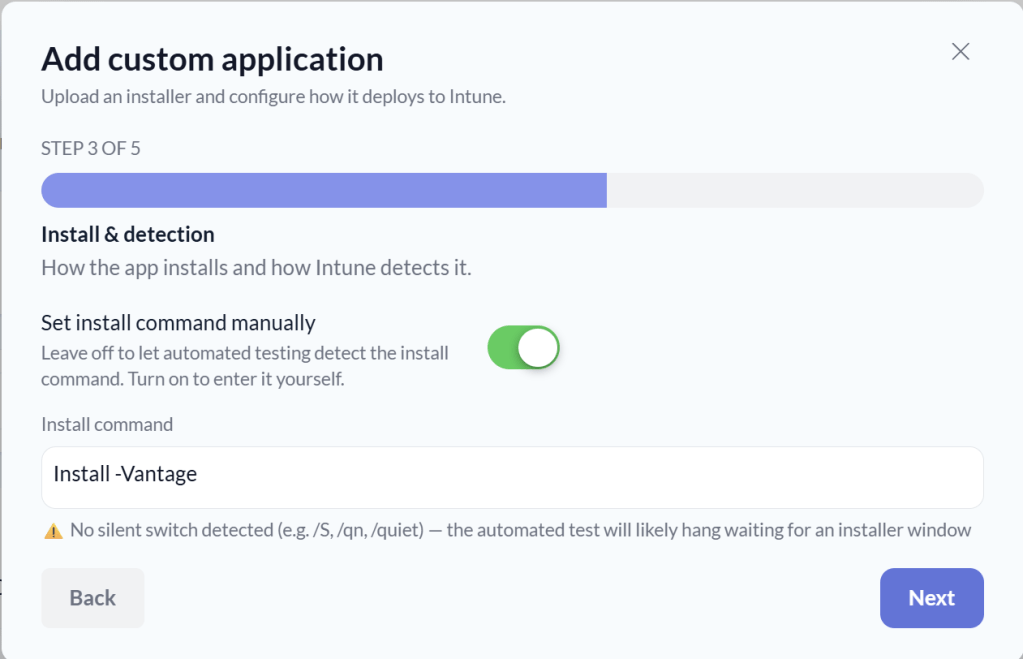
Switch on Set install command manually and enter:
Install -Vantage
The parameters are case sensitive and the operation has to come first. Install -Vantage gives you the full deployment: the app, Lenovo Vantage Service and the add-ins. If you want a smaller footprint, Lenovo also supports:
Install -Appfor the application on its own, without the service componentsInstall -Litefor System Update functionality only-SuHelperappended to either, to include the System Update helper
About that silent switch warning
As soon as you type the command, Pckgr flags it:
No silent switch detected (e.g.
/S,/qn,/quiet). The automated test will likely hang waiting for an installer window.
That is a good warning, and for most .exe installers it is exactly right. An installer with no silent switch sits there waiting for someone to click Next, the test times out, and you have burned half an hour finding out.
Commercial Vantage is the exception. VantageInstaller.exe runs silently by default. There is no /S to add because there is nothing to suppress, so the warning is a false positive here and you can carry on past it. Do not train yourself to ignore it, though. The same warning on a Wireshark package would be telling you something real. Treat it as a prompt to check the vendor’s documentation, not as a blocker.
The result
Once the package is submitted, Pckgr installs it in a clean test environment, confirms the app is present afterwards, and marks it Verified.

One thing to note on the version number. The file we uploaded was named 20.2603.19.0, but the app list reports 4.2601.21.0. That is not a mismatch. 20.2603.19.0 is simply Lenovo’s version for the download package, while the version Pckgr shows is read from the registry after the install completes. It is the version Windows itself believes is installed, which is the same value Intune will compare against.
That distinction is easy to overlook and it matters for supersedence. If you version your Intune apps from the zip file name, you end up tracking a number that does not correspond to anything on the endpoint.
Wrapping up
Commercial Vantage is a good example of an app that looks straightforward until you open the download. Multiple installers, an MSIX bundle, a sample batch script and no silent switch in sight. Once you know that VantageInstaller.exe Install -Vantage is the whole story, the packaging work is three screens and an upload.
Want to see how the rest of your backlog would look? You can start a free trial at intunepckgr.com, or book a demo and we will walk through your own apps together.


Leave a comment