
If you have started packaging MSIX applications for Microsoft Intune, you have probably run into a strange one. The package is fine. The detection rule is fine. The assignment is fine. The install runs and returns exit code 0. And Intune still reports the app as failed.
Then you check the device and find the user had the app open the whole time.
This one catches people out because the installer is not telling you anything is wrong. And on a bad day it does not stop at a misleading report. We have had this leave the application in a state where it will not launch at all, and the only way back is to remove the package off the device manually.
In this blog we are going to look at what actually happens when you update an MSIX package while it is running, using the Claude desktop app as the example, and then show you how to handle it properly in Pckgr with the Close Applications setting. We have chosen Claude because we have experienced this break firsthand on our devices.
The scenario
We have enrolled a Windows 11 VM into Intune and deployed the Claude x64 MSIX package through Pckgr. Version 1.37937.0 is available, so we set up an update deployment to move devices onto it.
The catch is that Claude is the kind of app people leave open all day. It sits in the tray, it is running while the user is mid conversation, and nobody closes it just because IT has scheduled something. So when the update lands, claude.exe is almost always running.
The issue
Here is where it gets confusing. When the MSIX update runs while the application is open, the install exits 0. As far as the exit code is concerned, everything worked.
Detection then fails…
So you end up with an install that claims success and a detection rule that cannot find the new version, which is the combination Intune reports as a failure. That is why this one is harder to diagnose than a normal failed install. There is no error code to look up, because the installer never raised one.
What the detection rule is actually doing
The detection rule on an MSIX package is a script, and it comes down to a version comparison:
powershell
$package = Get-AppxPackage -Name 'Claude' -AllUsers | Select -First 1if ($package) { $InstalledVersion = [Version]$package.Version $TargetVersion = [Version]'1.37937.0' if ($InstalledVersion -ge $TargetVersion) { Write-Host "Installed" exit 0 } else { exit 1 }}else { exit 1 }
Nothing wrong with that on its own. The problem is what Get-AppxPackage returns while the application is open.
When you update an MSIX package that has a live process attached to it, Windows stages the new version but holds off on registering it. The old version stays registered until the process ends. So Add-AppxPackage completes, PSADT closes out with exit code 0, and Intune moves on to detection. Detection then asks Windows what version is installed, Windows answers with the old one, the comparison fails, and the script exits 1.
In the logs that shows up as an install that reported success followed immediately by applicationDetectedByCurrentRule: False. Nothing errored. The two steps just disagreed.
It can get worse than a bad detection
Everything above is recoverable. The device is on the old version, the report is wrong, and the next successful run sorts it out.
That is the good outcome.
We have also seen the update leave the package in a genuinely broken state. The application will not launch at all. No error, no splash screen, nothing happens when the user clicks the shortcut. Windows still lists it as installed, so from the outside it looks like the app is there. It just does not run.
Once a package is in that state, redeploying does not help you. The install runs, reports success, and the app still will not open. You have to take the package off the device properly first:
# Uninstall MSIX Package: Claude try { $package = Get-AppxPackage -Name 'Claude' -AllUsers | Select -First 1 if ($package) { Write-Host "Removing package: $($package.Name)" Remove-AppxPackage -Package $package.PackageFullName -AllUsers -ErrorAction Stop Write-Host "Package removed successfully." } else { Write-Host "Package not found." } } catch { Write-Host "Error during uninstall: $_" }
Then redeploy from Pckgr and let it install cleanly.
That is a manual touch on every affected device, which is exactly the kind of work you deployed through Microsoft Intune to avoid. One or two is an annoyance. A rollout that hits a few dozen users is a bad week.
Note: This is the strongest argument for setting Close Applications properly. A false failure in a report costs you time. A corrupted package costs your users their application.
Setting it up in Pckgr
Rather than hoping users close the app, we tell the deployment to handle it. Head into the application in Pckgr and open Advanced Configuration, then find Installation Behavior.
Pckgr will also flag it for you before you deploy. When we built the Claude package, Pckgr showed this hint against the application:

Here is what each setting does and what we used for Claude.
- Install Method. We are using
AllowDeferCloseApps. This gives the user a prompt before the install runs, lets them put it off a set number of times, and closes the listed applications when they accept. - Defer Count. Set to
3. The user gets three chances to postpone before the install goes ahead regardless. Three is a reasonable middle ground. Enough that you are not interrupting someone mid task, not so many that the update never lands. - Close Applications. Set to
Yes. This is the setting that actually solves the problem. Without it, none of the rest matters. - Apps to Close. We entered
claude. This is the process name, without the.exe. - Prompt for Restart. Set to
No. Claude does not need a reboot after updating, so there is no reason to ask for one. - Remove Shortcut. Set to
No. We want the Start menu shortcut left alone.
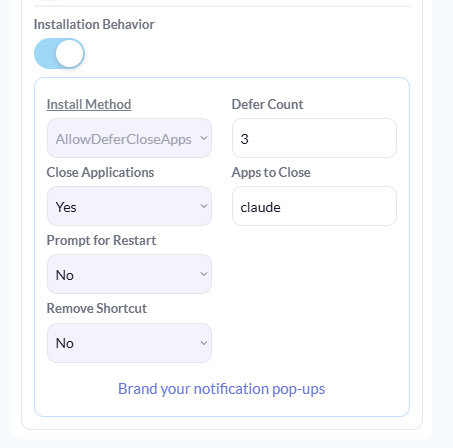
Note: Apps to Close takes the process name, not the display name of the application. If you are unsure, check Task Manager on a test device and use what appears under Details.
What the user sees
Once that is saved and the deployment runs, the user gets a prompt instead of a silent failure.
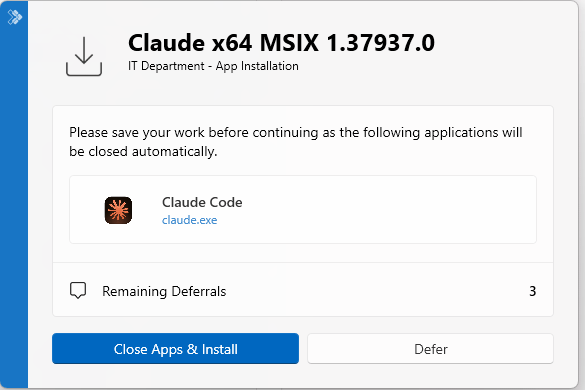
The dialog tells them exactly which application is about to close, asks them to save their work, and shows how many deferrals they have left. They can hit Defer and get on with what they were doing, or hit Close Apps & Install and let it run.
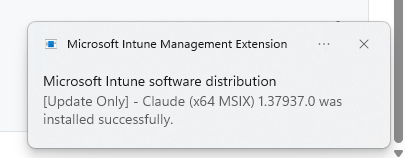
Either way, when the install does go ahead, claude.exe is closed first and the MSIX has a clean run at it.
What to do next
If you are deploying MSIX packages through Intune it might be worth reviewing the deployment settings and confirm you have a mechanism in place to close the application if it’s open before running updates.


Leave a Reply