
Autodesk Navisworks Freedom 2026 doesn’t ship as an MSI. It comes as a self-extracting archive containing a .7z, which in turn holds Setup.exe and the folders it needs to run.
This blog walks through packaging it as a Custom Application in Pckgr for deployment through Microsoft Intune.
What you download
Autodesk gives you Autodesk_Navisworks_Freedom_2026_Win_64bit_db.sfx.exe. Open it with 7-Zip and there’s a single file inside:
Autodesk_Navisworks_Freedom_2026_Win_64bit_db_002_002.7z
Pull that .7z out. That’s the file you’ll upload, so it’s the only extraction you need to do.
Before moving on, open the .7z and take a look at what’s in it.
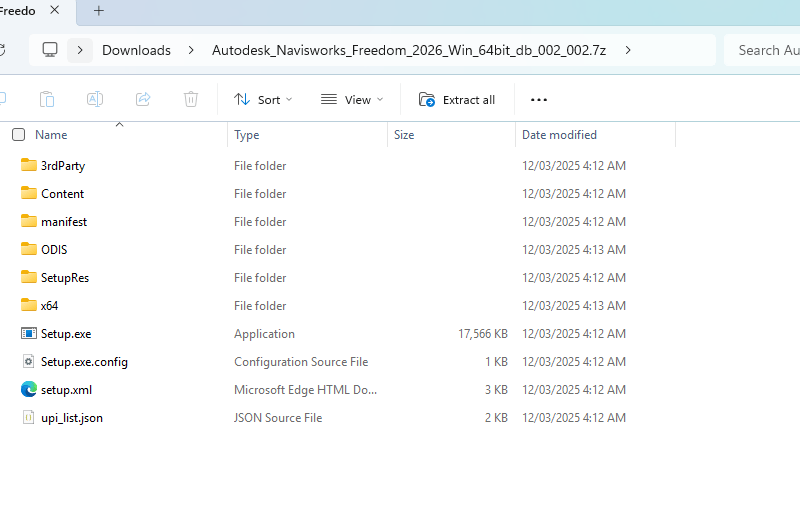
Setup.exe at the root, alongside the 3rdParty, Content, manifest, ODIS, SetupRes and x64 folders.Setup.exe sits at the root with six folders beside it. All of them are needed at install time, which is why the archive goes up whole rather than just the EXE. Make a note of that file name, you’ll need it in a moment.
Step 2: the installer
On the Installer step of the Add custom application wizard, upload the .7z.
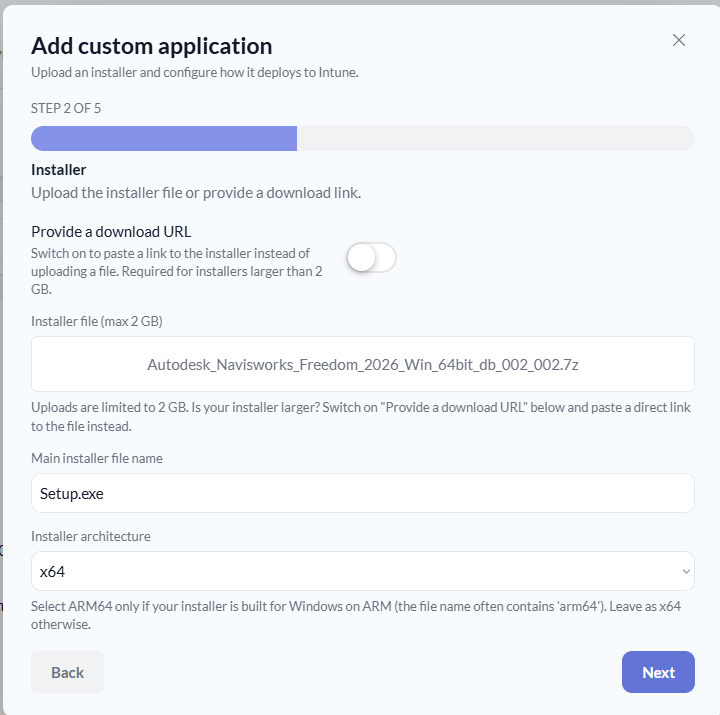
.7z uploaded, with Setup.exe set as the main installer file name and the architecture set to x64.Upload the .7z itself, not the .sfx.exe you originally downloaded and not a folder you’ve extracted. Pckgr unpacks the archive at deployment time.
Main installer file name tells Pckgr what to run once the archive is unpacked. For Navisworks that’s Setup.exe, the file you saw at the root a moment ago.
Installer architecture stays on x64. Navisworks Freedom 2026 is 64-bit only.
Direct uploads are capped at 2 GB. If your archive is larger, switch on Provide a download URL and paste a direct link to the file instead.
Step 3: install command
Next is Install & detection.
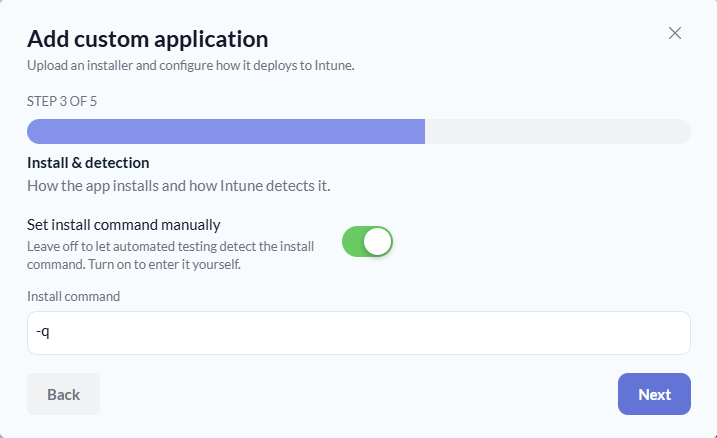
et install command manually switched on, with -q entered as the install command.Left off, Pckgr works the install command out for you through automated testing. Since we already know Navisworks takes a quiet switch, we’ll switch Set install command manually on and enter it:
-q
That’s the full command. You don’t repeat Setup.exe here, because Pckgr already has the main installer file name from the previous step. It runs Setup.exe -q.
Note:
-qis Autodesk’s quiet switch for their ODIS-based installers, so the same command applies across the 2026 Autodesk range.
App details
Once the package is created, set how it appears to your users.
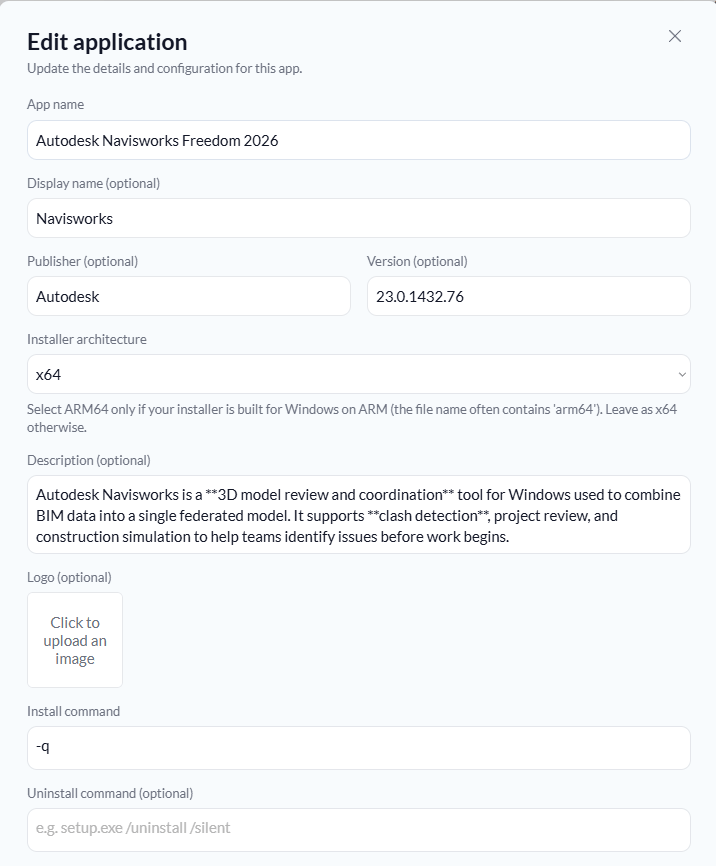
- App name:
Autodesk Navisworks Freedom 2026 - Display name:
Navisworks 2026, which is what end users see in Company Portal - Publisher:
Autodesk - Version:
23.0.1432.76 - Description: a short explanation of what the app does, so people requesting it know they’ve got the right one
The display name is worth a second of thought. Autodesk Navisworks Freedom 2026 is correct but long, and Company Portal will truncate it.
That’s the package built. No .intunewin, no detection rule to write, and no need to extract anything past the first archive.


Leave a Reply