
Application control is one of those settings most admins know they should turn on, but very few actually do. It’s one of the Essential Eight strategies, and Microsoft has offered it for years as Windows Defender Application Control (WDAC), now called App Control for Business. So why do so many organisations leave it switched off?
Usually it comes down to two things:
- The risk to business critical apps. Get the policy wrong and you block the software the business runs on. Nobody wants to be the admin who stopped the finance team opening their accounting software at end of month.
- The maintenance never ends. Even with tools like the WDAC Wizard, you’re collecting event logs, working out what to allow, merging policies and uploading them to Intune. Then a vendor pushes an update or someone needs a new app, and you’re doing it all over again.
That’s why we built App Control for Pckgr. It lets you build an allow list in Pckgr from the software your devices actually run, then rolls it out through Microsoft Intune in stages, so nothing is blocked until you’re ready.
In this blog, we’ll walk through the full rollout: deploying the audit policy, reviewing what comes in, switching on block mode, and allowing an app that got blocked.
Before you start
Pckgr reads the App Control audit and block events from your devices using advanced hunting in Microsoft Defender for Endpoint (MDE). Advanced hunting is only included in Defender for Endpoint Plan 2, so you’ll need that licence (or a bundle that includes it, such as Microsoft 365 E5) for your devices to report back to Pckgr.
Note: Microsoft Defender for Business and Defender for Endpoint Plan 1 don’t include advanced hunting, so they won’t work with App Control for Pckgr.
Your devices also need to be onboarded to MDE.
Turn on the Managed Installer first
Before you deploy anything, set the Intune Management Extension as a Managed Installer. You’ll find this in the Intune admin center under Endpoint security > App Control for Business > Managed Installer.
Once it’s on, any app that Intune installs is tagged as coming from a trusted source. That includes every app you deploy through Pckgr.
Do this first. The Managed Installer only tags apps installed after it’s turned on. Anything that was already installed won’t be tagged.
Our setup
For this demo, we’ve enrolled a Windows 11 VM into Intune and onboarded it to MDE. We’ve also created two Entra ID security groups, and our VM sits in the Pilot group:
WDAC_Pilot: a small group of test devices that get every change firstWDAC_Prod: everyone else
Step 1: Setting the Pilot group
When you first open App Control for Pckgr, the baseline policy shows as Not deployed. Across the top you can see the four stages of the rollout:
- Audit Pilot
- Audit Production
- Enforce Pilot
- Enforce all rings
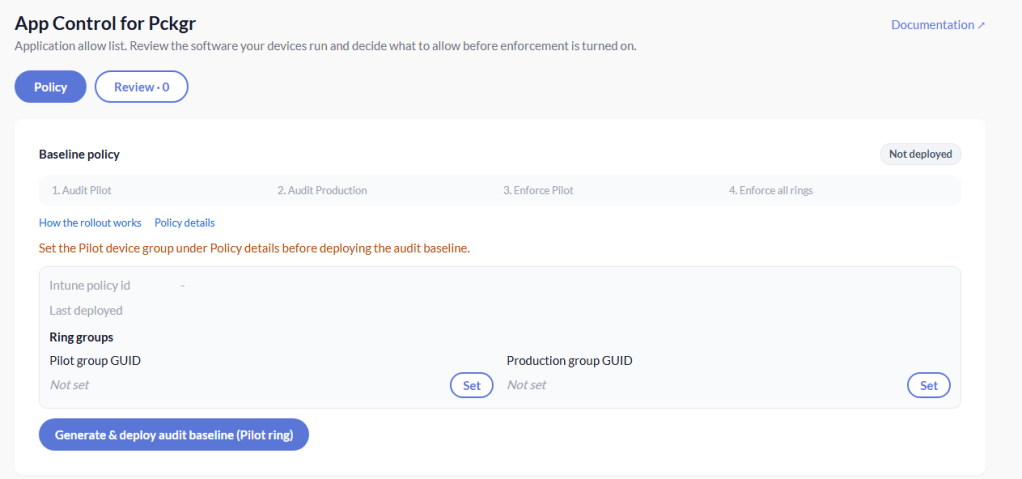
Before we can deploy anything, Pckgr needs to know which devices are in the Pilot ring. We copy the object ID of our WDAC_Pilot group from Entra ID.

Then we click Set next to Pilot group GUID and paste it in.
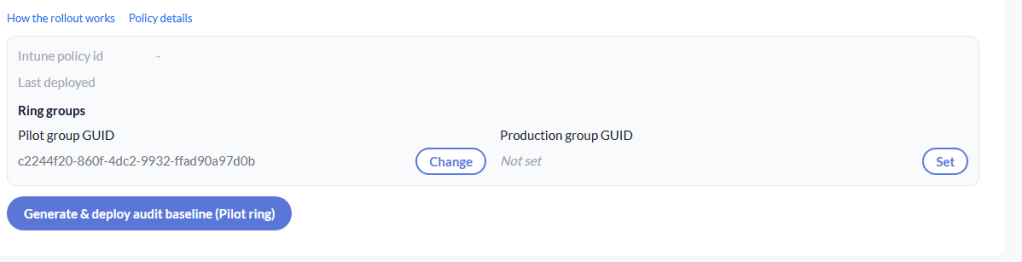
Step 2: Deploying the audit baseline
With the Pilot group set, we click Generate & deploy audit baseline (Pilot ring). Pckgr builds the base policy and creates it in Intune.
In audit mode, nothing is blocked. Windows logs every app that would have been blocked, and Pckgr pulls those events in from Defender for Endpoint using advanced hunting, ready for you to review.
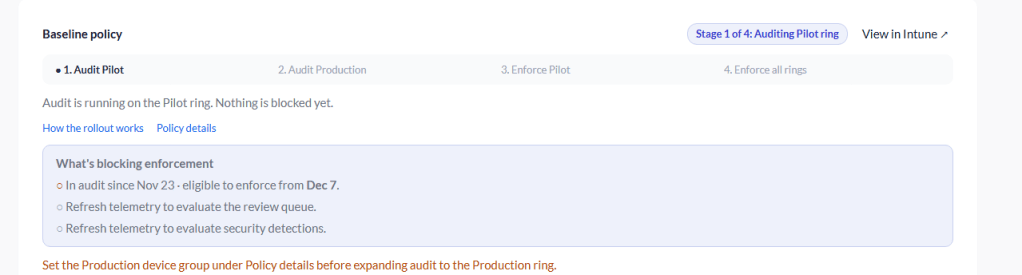
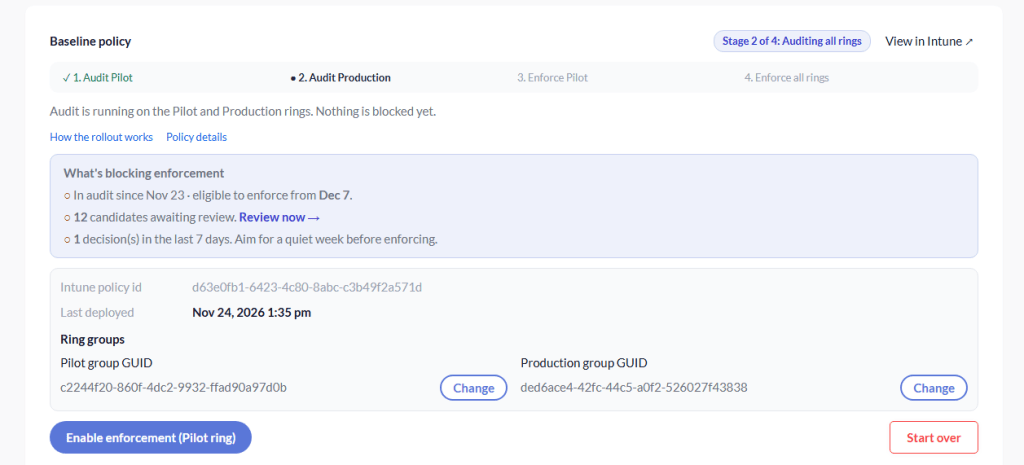
The policy card now shows Stage 1 of 4: Auditing Pilot ring, along with a What’s blocking enforcement panel. This is Pckgr’s readiness checklist, and it tracks three things:
- Time in audit. Our policy went into audit on Nov 23, so it’s eligible to enforce from Dec 7.
- Apps waiting for review. Anything still in the queue would be blocked if you enforced today.
- Recent decisions. If you’re still allowing new apps every day, you’re not ready. Pckgr suggests waiting for a quiet week first.
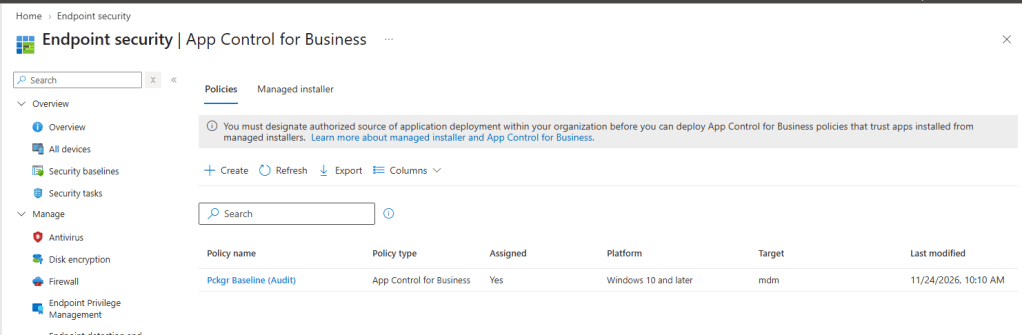
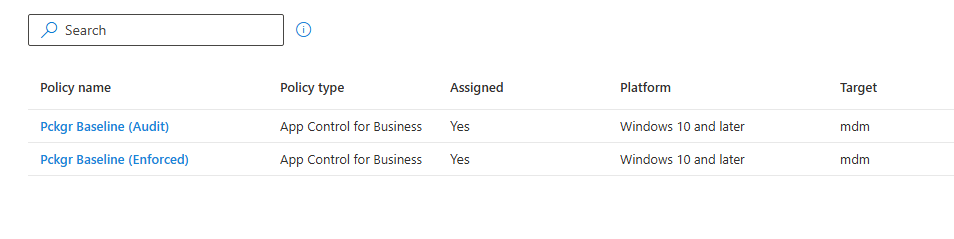
Over in Intune, under Endpoint security > App Control for Business, the new Pckgr Baseline (Audit) policy is created and assigned.
Step 3: Expanding audit to Production
In a real rollout, you’d leave the Pilot ring in audit for a while and only move on once things are quiet. For this demo, we want to get to block mode quickly. The rollout moves through each stage in order, so we expand audit to Production straight away to get there.
We set the Production group GUID to our WDAC_Prod group and click Expand audit to Production ring. The policy moves to Stage 2 of 4: Auditing all rings.
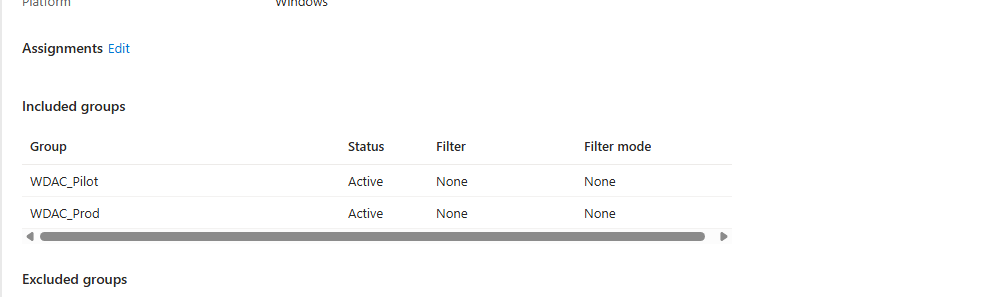
In Intune, the audit policy is now assigned to both groups.
Step 4: Reviewing what’s been found
The Review tab is where the audit results land. Pckgr doesn’t give you a long list of single files. It groups them by who signed them. After a short time in audit, our queue had 13 candidates from 9 publishers, plus 4 unsigned files. Together, that’s 31 files that would be blocked if we enforced today.
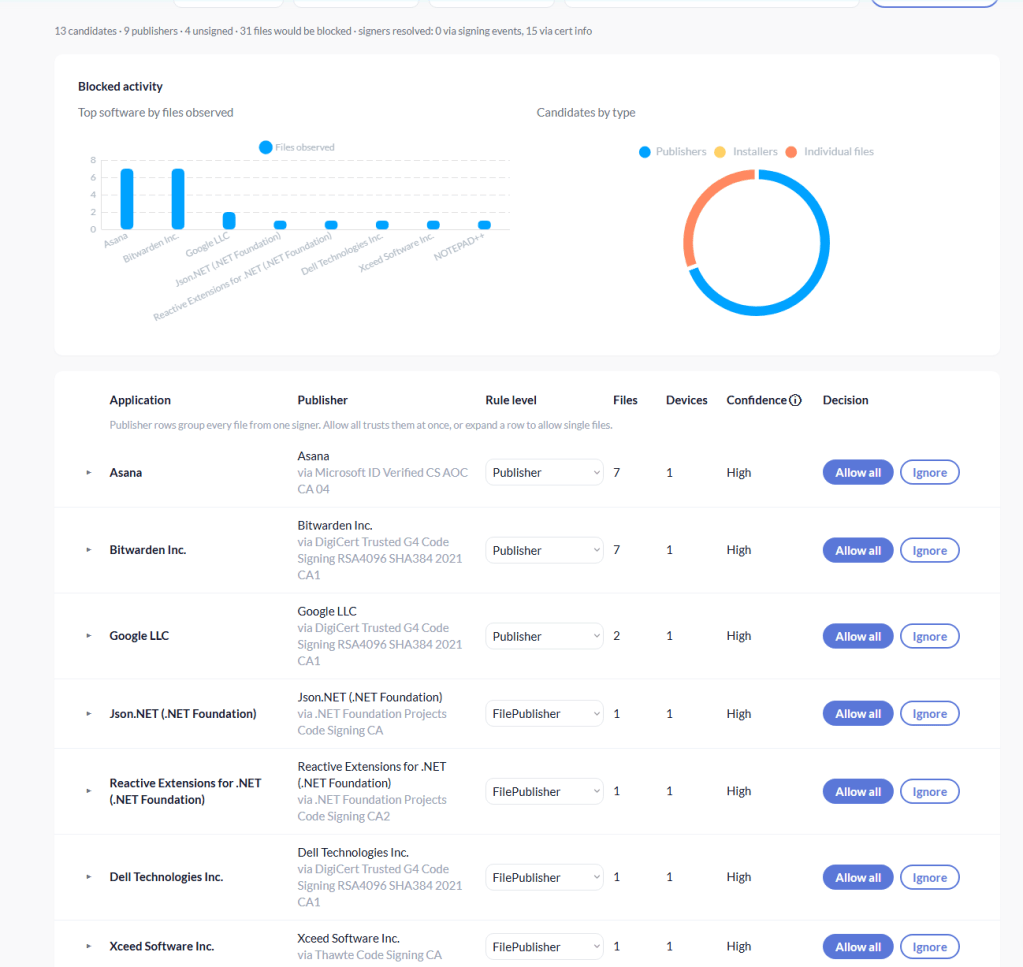
Each row shows the publisher, the certificate it was signed with, how many files and devices are affected, and a confidence rating. You can then Allow all or Ignore.
The Rule level dropdown decides how much you trust:
- Publisher: trust anything signed by this publisher.
- ProductPublisher: trust only one product from this publisher.
- FilePublisher: trust specific files from this publisher.
Unsigned files don’t have a publisher to trust, so for these you can set a Hash rule. This trusts that exact file only. If the file changes, for example after an update, its hash changes too and you’ll need to allow it again.
For this demo, we leave everything in the queue alone. We want to see what block mode looks like.
Step 5: Switching on block mode
We click Enable enforcement (Pilot ring). Pckgr explains what’s about to happen: Pilot devices go into block mode, while Production stays in audit.
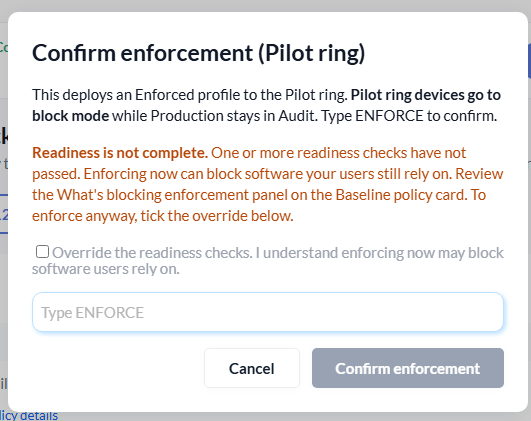
Note: We’re overriding the readiness checks here only to show block mode in a demo. In a real rollout, wait until the checklist is clear. Enforcing early is how users lose access to apps they rely on.
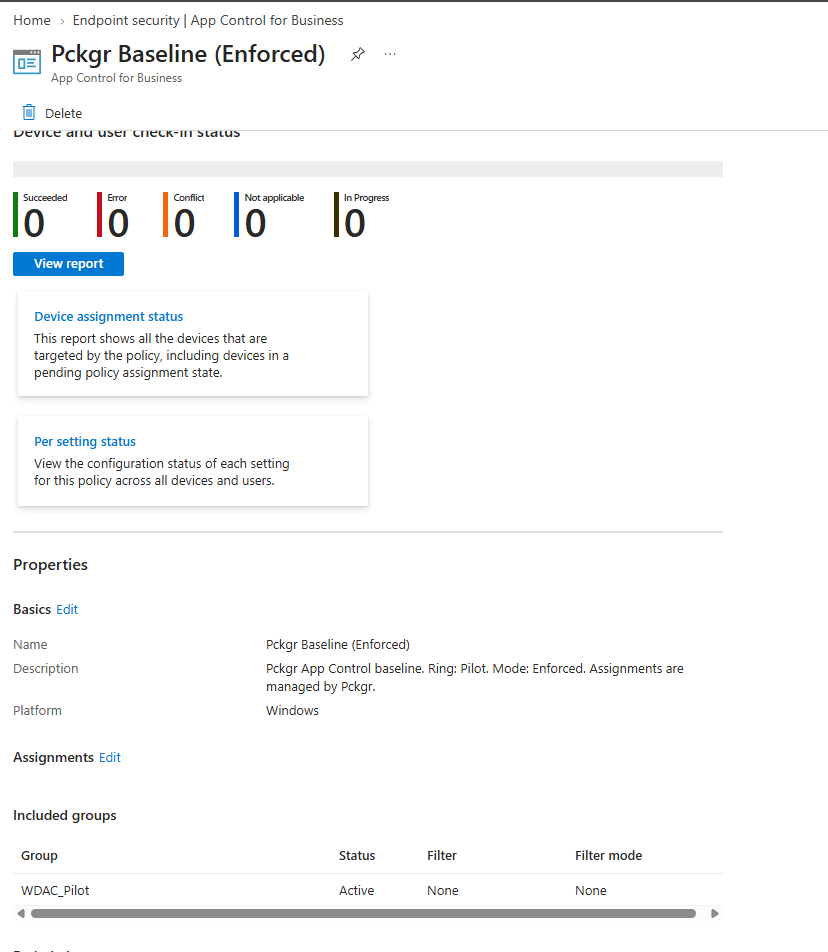
In Intune, a second policy called Pckgr Baseline (Enforced) now sits next to the audit policy. It’s only assigned to WDAC_Pilot. The description also notes that assignments are managed by Pckgr, so changes should be made in Pckgr, not Intune.
Step 6: Apps getting blocked
After syncing our VM, we tried opening Google Chrome and Notepad++. Both were blocked straight away.
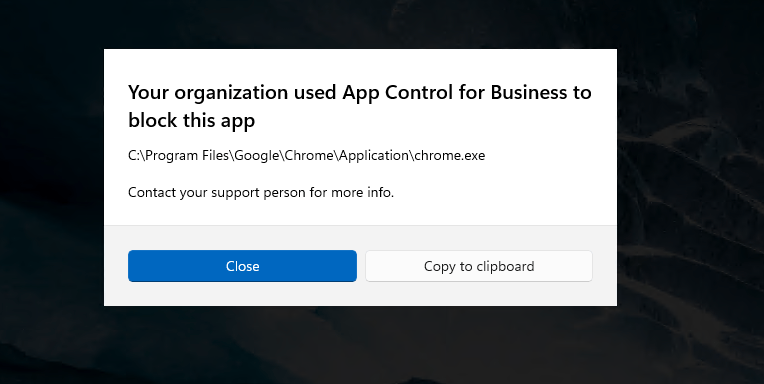
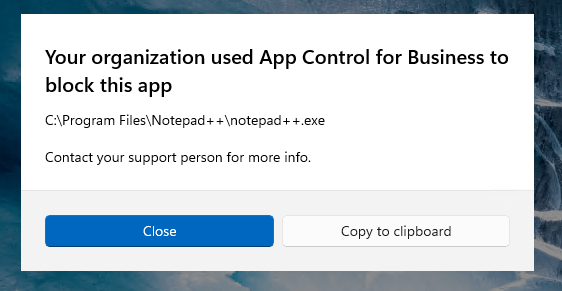
Back in Pckgr, the Review tab now shows both publishers in red, with Blocking 1 device(s) and the time of the block. You can see straight away which apps are affecting your users.

Step 7: Allowing Notepad++
We want Notepad++ back. A good habit is to start with the tightest rule that gets the app working, and only widen it if you need to. So we start with ProductPublisher and choose Notepad++ under Allow only this product from the publisher. Pckgr explains that any version with this product name is allowed, and other products from the same publisher stay blocked.
After clicking Allow all, Notepad++ moves to the Allowed list with a Not in Intune yet badge. This means the decision is saved in Pckgr but hasn’t reached your devices yet.

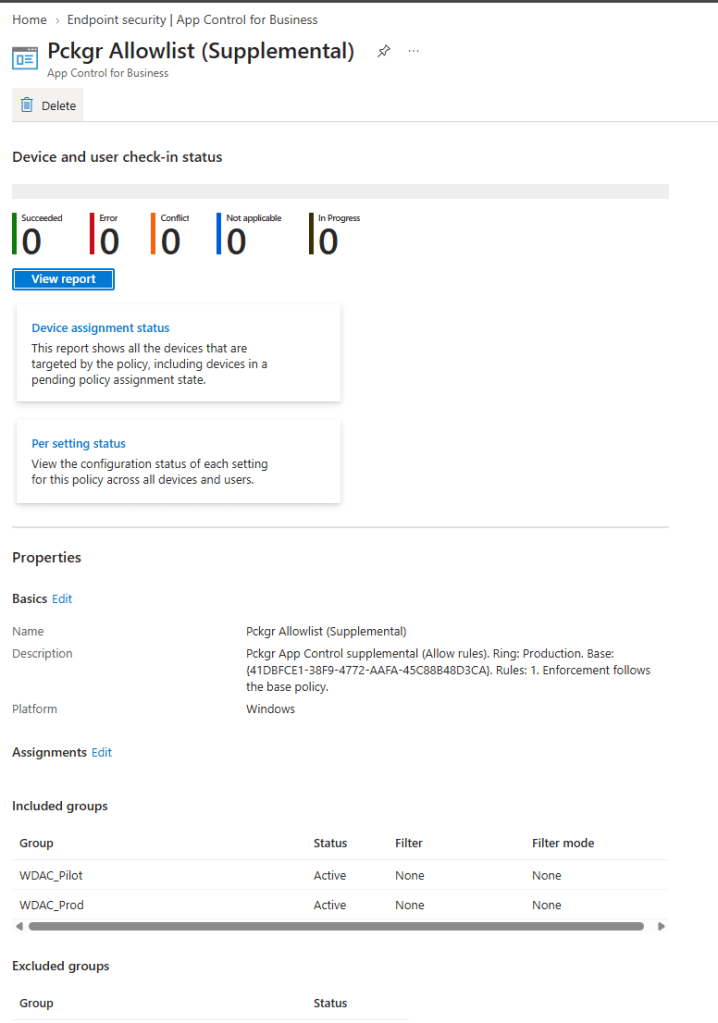
We click Deploy to Intune, and Pckgr creates a third policy called Pckgr Allowlist (Supplemental). A supplemental policy adds allow rules on top of the base policy, so the baseline itself doesn’t change. It’s assigned to both rings, and it follows whatever mode the base policy is in.
Step 8: Testing again, and a plugin problem
After syncing the VM, Notepad++ opens. But straight away, we get this:
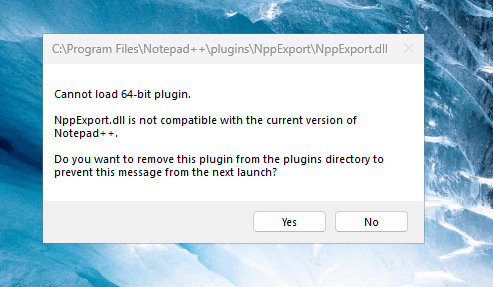
The message says the plugin isn’t compatible, but that’s not the real problem. App Control blocked the plugin’s DLL. You also don’t get the App Control popup this time, which makes it easy to go looking in the wrong place.
So what went wrong? The plugin DLLs are signed by the same publisher, but they don’t carry the Notepad++ product name. Our ProductPublisher rule only covered files with that exact product name.
Sure enough, back in Pckgr, NOTEPAD++ is back in the Review queue. This time it lists 5 files instead of 2.

This time we set the rule level to Publisher, click Allow all, and deploy to Intune again.
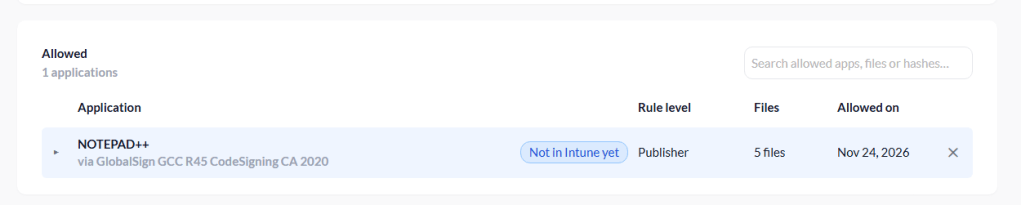
After another sync, Notepad++ opened straight away with no plugin error. Chrome is still blocked, because we never allowed it.
This is a good example of the trade-off between rule levels. ProductPublisher is tighter, but it can miss plugins and helper files that a vendor signs under a different product name. Publisher is broader and catches those files, but you’re trusting everything that vendor signs. Pick the level that fits how much you trust the vendor.
Wrapping up
That’s the full process: audit, review, enforce on Pilot, allow what’s needed, deploy, and test. Once the Pilot ring has been quiet for a while, the last stage, Enforce all rings, moves Production into block mode too.
If you’re working toward Essential Eight application control, or you just want to see what’s running across your devices, App Control for Pckgr is available now as part of the Security Dashboard on the Business plan. Start a free trial at http://intunepckgr.com.


Leave a Reply